How to Clean Up Space on Mac for Faster Performance
Running low on disk space can slow down a Mac and complicate routine tasks. This guide provides practical, step-by-step methods to reclaim storage, optimize performance, and keep your system tidy. It covers built-in tools, external storage options, and best practices for ongoing maintenance.
Whether you rely on a MacBook Pro, iMac, or Mac mini, freeing space can improve boot times, app responsiveness, and overall usability. The steps below are designed for regular users who want clear actions with tangible results.
Quick Answer
Assess storage with the built-in macOS tool, remove unneeded apps and large files, optimize iCloud and Downloads, and consider offloading or compressing data. Use external storage for backup and archiving to keep your main drive lean.
What You’ll Need
- External hard drive USB-C 2TB for MacBook Pro Time Machine backup
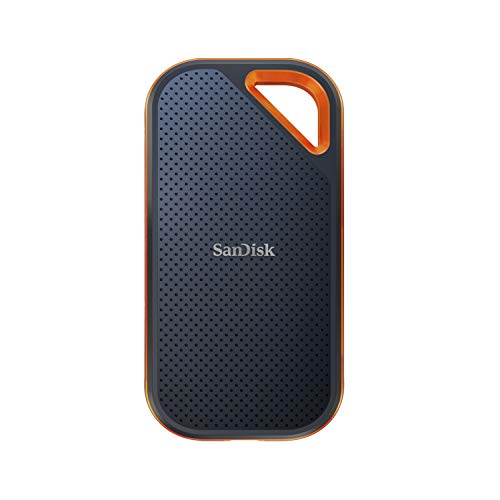
- Thunderbolt 3 external SSD 1TB for MacBook Pro portable storage
- USB-C flash drive 128GB for Mac data transfer and cleanup


Before You Start
Back up important data before making changes, especially when deleting files or moving data off the main drive. Review privacy concerns for cloud syncing and ensure your Mac is plugged into power during lengthy cleanup sessions. Typical cleanup time ranges from 20 minutes for quick tasks to several hours for large archives, depending on data volume. Be careful with system files and avoid deleting anything you don’t recognize.
Step-By-Step: How To Clean Up Space On Mac
- Open the Apple menu and choose About This Mac, then select Storage to see what is consuming space.
- Click Manage to review recommendations and access tools for removing content.
- Use Store in iCloud to offload photos, videos, and documents if you want to free local space while keeping access online.
- Review iTunes, Mail, and Applications sections to delete unused apps, old attachments, and large mail downloads.
- Empty the Downloads folder and use Smart Folders to identify large files (>100 MB) for review.
- Move old projects and large media to external storage such as the Thunderbolt 3 external SSD 1TB or the External hard drive USB-C 2TB, and run a fresh backup.
- Consolidate and reduce duplicate files by scanning with a safe-deletion plan for temp files, caches, and duplications.
- Optimize Photo Library and Mail attachments by enabling recommendations and removing local copies where appropriate.
- Utilize the Storage Management options to compress or offload rarely used items, freeing space without losing access.
- Run First Aid in Disk Utility to ensure disk health before and after large cleanups to prevent data loss.
- Configure a regular cleanup routine, alternating between quick weekly checks and deeper quarterly reviews.
Troubleshooting
| Symptom | Likely Cause | Fix | Prevention |
|---|---|---|---|
| Mac runs slowly with ample free space | Fragmented caches or background processes | Clear caches, quit unused apps, reboot | Regular maintenance schedule |
| Cannot delete certain system files | Protection and permissions | Use Disk Utility First Aid or review in Safe Mode | Avoid modifying macOS system folders |
| Low disk space persists after cleanup | Large media libraries or backups | Move libraries to external storage | Archive old files routinely |
| iCloud not freeing local space | Sync settings or optimization | Review iCloud Drive options and uncheck local copies | Balanced cloud storage plan |
| External drive not recognized | Connection or format issue | Try different port and format drive if needed | Use certified cables and keep drives updated |
Common Mistakes
- Deleting files without checking their usage or backups
- Over-reliance on large downloads remaining in Downloads folder
- Disabling automatic backups or cloud syncing without a plan
- Moving system folders or hiding important files unintentionally
Sticking to safe deletion practices helps prevent accidental data loss and ensures you retain essential files for daily use.
Tips For Best Results
- Schedule automated backups before cleanup sessions to protect data integrity.
- Archive rarely used media to an external drive to keep primary storage lean.
- Use Finder’s All My Files or Large Files search to identify candidates for cleanup.
- Keep a dedicated external drive connected for ongoing backups and transfers.
- Regularly review Downloads and Applications to prevent buildup over time.
Call A Professional
Consider contacting a professional if you encounter persistent storage issues, suspect a failing drive, or cannot safely delete system files. Stop and seek help if you see data loss warnings, unusual crashes, or drive noise. For routine tidyups, DIY steps are typically sufficient.
FAQ
What is the fastest way to reclaim space on a Mac?
Start with storage recommendations, delete unused apps, move large files to external storage, and use iCloud or other cloud options for offloading photos and documents.
How can I determine which files take up the most space?
Open About This Mac > Storage > Manage to see a breakdown by category and use the Review files option to locate large items.
Is it safe to delete cache files?
Yes, but avoid deleting system or browser profiles without understanding the impact. Use built-in tools to clear caches safely.
Should I enable iCloud Drive to save space on my Mac?
Enabling iCloud Drive helps free local space by storing files online, but ensure your network access is reliable and understand potential data usage.
Can external drives replace internal storage for backups?
External drives are ideal for backups, but maintain a routine to keep backups up to date and secure from physical damage.
What if I still have space issues after cleanup?
Consider a more comprehensive archive plan, evaluate media libraries, or consult a technician to inspect disk health.
Is Time Machine required for backups?
No, but it is a recommended solution for continuous backups. Other options exist for selective or manual backups.
Buying Guide
When choosing storage solutions to support routine Mac cleanup, consider several factors to match your needs and workflow.
- Size: For backups, a larger drive (2TB or more) gives breathing room for multiple backups and large files. For portable storage, 1TB is a common sweet spot.
- Type: External hard drives offer high capacity at a lower cost, while SSDs provide faster transfer speeds and better durability for on-the-go use.
- Connection: USB-C and Thunderbolt 3 provide fast data transfer with modern Macs. Ensure your Mac has compatible ports or adapters.
- Noise and energy: SSDs are typically quieter and more energy-efficient than mechanical drives, useful for quiet workspaces and long sessions.
- Controls: Look for drives with straightforward formatting options and reliable backup software, aiding quick setup and maintenance.
- Placement: Desktop drives suit static workstations; portable drives excel for laptops. Plan storage location to minimize cable clutter and protect from accidents.
- Security: Consider drives with hardware encryption if sensitive data is involved and enable FileVault on your Mac for full-disk protection.
- Compatibility: Ensure the drive is formatted for macOS (APFS or Mac OS Extended) and supports Time Machine if you plan automatic backups.
With the right external storage strategy, cleanup becomes a routine task rather than a disruptive project. Combining a robust backup plan with selective offloading helps maintain a fast, organized Mac environment.
Leave a Reply