How to Clean a PS4 Disc Reader
The PS4 disc reader, or laser lens, can accumulate dust and fingerprints over time, leading read errors, skipping, or disc eject issues. Regular, careful cleaning helps restore reliable playback and extend the console’s life. This guide walks through safe, practical steps using common cleaning tools designed for electronics.
Readers are sensitive components. Follow the steps in order, and avoid excessive force or liquid contact with the console’s internal parts. If the console is still under warranty, consider checking warranty terms before attempting internal cleaning.
Quick Answer
Use a PS4 laser lens cleaning kit or a PS4 disc drive cleaning kit with microfiber cloth for gentle cleaning, and optionally a compressed air blower for electronics cleaning to remove loose dust. Avoid liquids; opt for dry, lint-free methods first. If read errors persist after cleaning, seek professional help.
What You’ll Need
- PS4 laser lens cleaning kit
- PS4 disc drive cleaning kit with microfiber cloth
- Compressed air blower for electronics cleaning
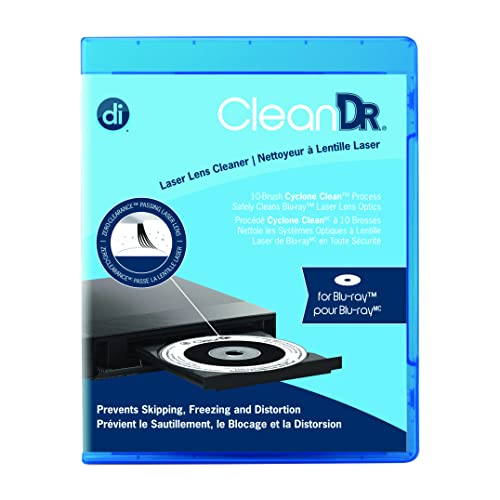

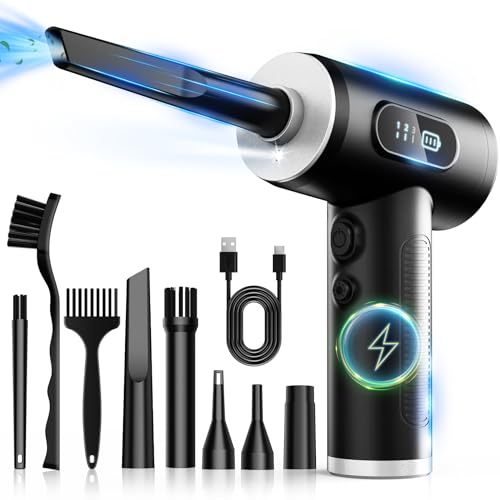
Before You Start
Prepare a clean, well-lit workspace. Power down the PS4 completely, unplug all cables, and allow the console to cool if it was recently used. Use a static-free stance to protect internal components. Do not spray liquids directly onto the lens or inside the drive. Work slowly and patiently to avoid damaging the laser assembly. Expect the process to take about 5–15 minutes for a routine cleaning.
Step-By-Step: How To Clean A PS4 Disc Reader
- Power off and unplug the PS4, then disconnect all cables. Remove any discs from the tray.
- Open the console exterior only as instructed by the cleaning kit’s manual to avoid voiding warranties. Do not attempt internal disassembly unless you are experienced.
- Use the compressed air blower to gently remove surface dust from around the drive bay area. Hold the can upright and avoid shaking or tilting.
- Apply the cleaning kit’s lens cleaning solution or dry cleaning pad exactly as directed. If using a microfiber cloth, lightly dampen with the kit’s recommended solvent, then wipe the exterior edge of the lens area in a single, smooth motion.
- In a controlled motion, use the lens cleaning disk or cleaning strip provided by the kit to sweep the laser area without applying heavy pressure. Repeat as per the kit’s instructions.
- Re-seat the disc gently and power on the PS4 to test a few discs. Listen for abnormal sounds and note whether discs spin smoothly and read without errors.
- If discs still fail to read, repeat the cleaning steps once more with light pressure and a fresh cloth. Do not reuse a dirty cleaning surface on the lens.
- Inspect the disc for scratches or warping if read errors persist. If needed, try multiple known-good discs to confirm the issue isn’t disc-specific.
- Close the console casing, reconnect cables, and run a final test with multiple format discs (CD, DVD, Blu-ray) to verify consistent performance.
- Store cleaning materials in a dry place and keep away from heat sources. Regular maintenance every few months can reduce future issues.
- If problems continue after cleaning, consider professional servicing or contacting Sony Support for guidance.
Troubleshooting
| Symptom | Likely Cause | Fix | Prevention |
|---|---|---|---|
| Disc spins but isn’t read | Dirty laser lens | Clean with lens kit as described | Routine cleaning every few months |
| Disc ejects immediately | Lens misalignment or debris | Gentle internal cleaning; avoid forcing disk | Keep console dust-free |
| No disc recognition after cleaning | Damaged laser or drive electronics | Seek professional service | Handle with care during cleaning |
| Unusual noises during read | Mechanical obstruction | Power off, inspect for foreign objects; consult pro if persists | Gentle handling; avoid deep probing |
Common Mistakes
- Using excessive liquid or spraying directly into the drive
- Rubbing hard with a cloth, which can scratch the lens
- Cleaning while the console is powered or hot
- Disassembling the drive without proper training
Stick to manufacturer’s guidelines and use purpose-built cleaning products designed for optical drives. When in doubt, opt for professional服务.
Tips For Best Results
- Perform dust removal with a gentle stream of compressed air before any liquid cleaning
- Always use microfiber cloths or kit-approved cleaning pads to avoid scratching
- Test with multiple known-good discs after cleaning
- Keep discs clean and free of fingerprints to minimize read errors
- Schedule regular maintenance if the console sees heavy usage
Call A Professional
Consider professional servicing if you notice persistent read failures after cleaning, the drive makes grinding noises, or there is visible damage to the drive housing. If your PS4 is under warranty, contact Sony Support before attempting internal repairs, and avoid opening the console yourself unless you’re trained.
FAQ
Can I use a regular flashlight to inspect the PS4 disc reader?
Bright lights can help inspection, but avoid shining direct light into the laser area. Use a flashlight at a shallow angle to avoid reflections while visually checking for obvious debris.
Is it safe to use my PS4 with a cleaning kit attached?
Follow the kit’s instructions and do not run the console while cleaning materials are in place. Power off and unplug before any cleaning.
How often should I clean the PS4 disc reader?
For regular use, perform a light cleaning every 2–3 months and a more thorough clean every 6–12 months, depending on dust exposure and usage.
What if cleaning doesn’t fix read errors?
If errors persist after cleaning, the issue may be lens misalignment or drive failure. Seek professional evaluation or contact support for repair options.
Do cleaning kits damage the PS4?
High-quality, kit-specific products used as directed pose minimal risk. Improper use or aggressive cleaning can damage the lens or drive; always follow manufacturer instructions.
Are there differences between PS4 and PS5 readers?
While similar, reading mechanisms differ between models. Use model-specific cleaning products and follow manufacturer guidance for your console version.
Buying Guide
When choosing cleaning tools for a PS4 disc reader, consider size, noise level, energy efficiency, controls, and placement. For a quick cleanup, a dedicated PS4 laser lens cleaning kit can be sufficient, while a comprehensive kit with a microfiber cloth and a safe compressor is ideal for periodic dust removal. Look for kits that include clear instructions and lint-free cloths to minimize the risk of scratches. If selecting a powerful compressed air tool, choose one with adjustable airflow and a straw attachment to target tight areas. Consider whether the kit supports dry cleaning only or includes a mild solvent approved for electronics. For placement, store cleaning supplies away from heat sources and in a dry area to maintain their effectiveness. Finally, read product reviews focusing on ease of use, compatibility with your PS4 model, and any reported outcomes to ensure you select a reliable option. Regular, careful maintenance helps keep the disc reader functioning smoothly and reduces read errors over time.
Leave a Reply