How to Clean Printer Paper Feed Rollers for HP Printers
Paper feed rollers are critical to smooth, reliable printing. Over time, dust, paper fibers, and oils from hands can reduce grip, causing jams or misfeeds in HP printers. This guide offers a practical, step-by-step approach to clean printer paper feed rollers safely, using dedicated HP maintenance tools and general supplies.
With the right routine, you can extend roller life and improve feed consistency without professional service. The steps below focus on common HP printer models and emphasize safe handling, effective cleaning, and preventative care.
Quick Answer
What you’ll do: Power down, remove consumables, inspect rollers, use cleaning tools designed for HP printers, dry, reassemble, and test with a few sheets. Target sticky residues and fine dust for best results.
What You’ll Need
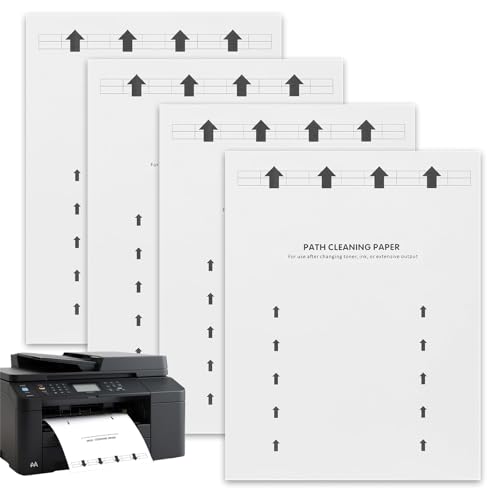
- HP printer feed roller cleaning kit
- Printer roller cleaning swabs for HP printers
- HP printer maintenance cleaning brush rollers
- Lint-free cloth or microfiber cloth
- Isopropyl alcohol (70% or higher) or cleaning solution recommended by HP
- Soft, non-abrasive gloves (optional for clean handling)
- Compressed air canister (for external areas only, if safe for your model)


Before You Start
Prepare a clean, well-lit workspace and gather tools. Turn off the printer and unplug it before any cleaning to avoid electrical shock. Accessing feed rollers may require opening the paper tray or rear access panel; consult your model’s manual first to locate rollers safely. If the printer is under warranty, check whether cleaning with third-party tools affects coverage. Always use cleaning products specifically designed for HP printers when possible.
Limit liquids near electronic components and avoid forcing rollers. Time estimates vary by model, but set aside 15–30 minutes for the cleaning process, plus 10–15 minutes for drying and test prints.
Step-By-Step: How To Clean Printer Paper Feed Rollers For HP Printers
- Power off, unplug, and remove any paper from trays. Open the access area where the feed rollers are located.
- Carefully inspect rollers for visible buildup, including paper dust, ink smudges, or greasy residues.
- Use a HP printer feed roller cleaning kit or cleaning swabs to engage the roller surface with a light, even motion. Avoid applying excessive pressure to prevent roller damage.
- Moisten a swab with a small amount of cleaning solution or isopropyl alcohol if the kit does not include liquid, and wipe the roller surface along its length. Do not saturate; a damp swab is sufficient.
- Rotate the roller by hand if accessible to clean the entire circumference. Repeat with fresh swabs as needed until the surface looks clean and free of visible debris.
- Wipe away any loosened debris from the surrounding area with a lint-free cloth. Inspect the rollers again for any remaining grime.
- If your model allows, reinsert the rollers and reassemble the paper path components. Ensure components click securely into place and that trays align properly.
- Plug in and power on the printer. Load a few test sheets and print a blank page to evaluate the feed. If issues persist, repeat the cleaning once more or proceed to further diagnostics.
- Run a calibration or alignment process if your printer supports it, using the printer’s built-in settings. This helps confirm the rollers engage correctly with paper.
- Document the cleaning as part of preventive maintenance. Note the date and any observations to guide future cleanings.
Troubleshooting
| Symptom | Likely Cause | Fix | Prevention |
|---|---|---|---|
| Frequent paper jams at feed | Roller grip degraded or dirty | Clean rollers with cleaning kit/swabs; inspect for wear | Schedule regular cleanings; avoid touching rollers with bare hands |
| Multiple sheets pulled at once | Rollers uneven or sticky residue | Deep clean, ensure rollers rotate freely | Keep area dust-free; use quality paper |
| Slipping during feed | Oil/grease residue | Use appropriate cleaning solution sparingly | Wash hands before handling printer; store tools dry |
| Paper skew or misalignment | Misaligned trays or rollers | Check tray guides and rerun alignment | Keep trays adjusted to paper size |
Common Mistakes
- Using excessive liquid near rollers
- Applying high pressure with brushes that can abrade surfaces
- Cleaning while powered on or without unplugging
- Neglecting to dry surfaces completely before reassembly
Following proper technique reduces wear and improves reliability. When in doubt, refer to HP’s maintenance guidelines for your specific model.
Tips For Best Results
- Clean rollers every 3–6 months for high-usage printers, or when feed issues appear.
- Store cleaning tools in a clean, dry area to prevent contamination.
- Use genuine HP maintenance supplies where possible to ensure compatibility.
- Keep the printer environment free of excess dust and humidity to minimize buildup on rollers.
- Perform a test print after each cleaning to verify improvements before proceeding with business-critical tasks.
Call A Professional
Consider contacting a technician if you notice:
- Persistent feed problems after multiple cleanings
- Visible roller wear or cracking
- Paper jams beyond the tray area or unusual noises during feed
Professional service may be warranted for aging printers or models with complex feed systems. For critical tasks, rely on a trained technician to avoid further damage.
FAQ
Can I use any cleaning solution for HP printer rollers?
Use cleaning solutions recommended by HP or the cleaning kit provided. Avoid aggressive solvents that can degrade roller material.
How often should I clean HP printer rollers?
Schedule regular maintenance based on usage: light users every 6–12 months, heavy users every 3–6 months.
Is it safe to rotate rollers by hand during cleaning?
Yes, if the rollers are accessible and the printer is powered off and unplugged. Handle gently to avoid damage.
What if cleaning doesn’t fix feed issues?
Reinspect for worn rollers, misaligned trays, or foreign objects in the paper path. If issues persist, consult HP support or a professional.
Should I clean the exterior of the printer too?
Exterior cleaning helps prevent dust from entering the paper path but avoid liquid intrusion into openings. Use a lightly damp cloth and wipe dry.
What exactly is in a printer feed roller cleaning kit?
Typical kits include maintenance swabs, a cleaning solution, and sometimes a dedicated brush for rollers designed for HP printers.
Do these steps apply to all HP printer models?
Basic principles apply broadly, but always check the model’s maintenance guide for roller access and compatibility.
Buying Guide
When selecting cleaning supplies and replacement parts for HP printer rollers, consider size, compatibility, and intended use. Key buying factors include:
- <bCompatibility: Ensure items match your HP printer model or belong to a universal HP maintenance line.
- Roller type and materials: Look for rollers designed for paper feed with appropriate grip and wear resistance.
- Cleaning kit contents: A complete kit with swabs, brush, and cleaning solution reduces accessory gaps.
- Ease of use: Tools should be ergonomic and safe for non-professional users.
- Durability: Reusable cleaning swabs or brushes save cost and reduce waste.
- Safety and warranty: Verify whether kit usage affects warranty and follow all safety instructions.
For most HP users, starting with a dedicated printer feed roller cleaning kit, supported by compatible cleaning swabs and a maintenance brush, offers the best balance of effectiveness and ease. Compare kits by included accessories, model compatibility, and trusted brand warranties. If in doubt, consult HP support for model-specific recommendations.
Leave a Reply