How to Clean Cricut Machine
The Cricut machine is a precision tool that benefits from regular, gentle cleaning to maintain performance. This guide provides practical steps using common cleaning supplies to remove dust, residue, and fingerprints from exterior surfaces, blades, and accessible electronics without voiding warranties.
Quick Answer
Turn off and unplug the Cricut, remove accessories, and wipe the exterior with a damp microfiber cloth. Use isopropyl alcohol wipes for stubborn smudges on non-electronic parts, and brush away debris from blades and vents with a soft cleaning brush. Avoid excessive moisture near electronics.
What You’ll Need
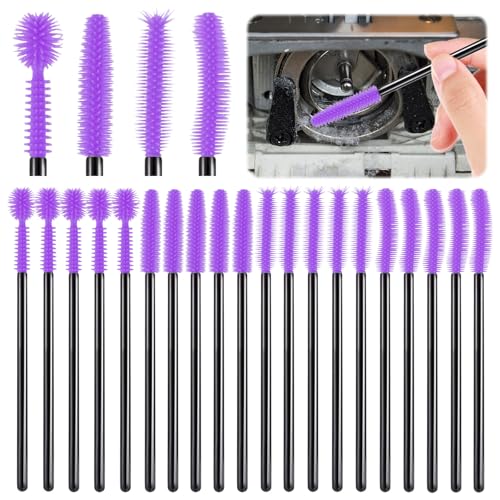
- Cricut machine cleaning brush
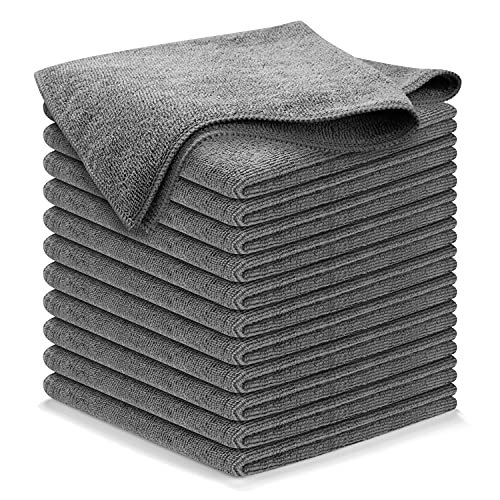
- microfiber cleaning cloth for Cricut machine
- isopropyl alcohol wipes electronics cleaning for Cricut

Before You Start
Unplug the machine and remove any mats, tools, and materials. Work in a clean, dry area away from direct sunlight. Avoid getting liquid into any openings or seams to protect internal electronics. Allow the unit to rest for a few minutes if it has recently been used with adhesives or ink. The total cleaning time is typically 5–15 minutes.
Step-By-Step: How To Clean Cricut Machine
- Power down and unplug the Cricut; disconnect any USB or power cables.
- Remove accessories like cutting mats, tools, and storage cups to access all surfaces.
- Dust the exterior with a dry microfiber cloth to remove loose particles.
- Use the Cricut machine cleaning brush to dislodge dust from crevices, vents, and the blade housing gap.
- Wipe exterior surfaces with a lightly damp microfiber cloth for smudges; do not soak.
- For stubborn marks, gently wipe with a small amount of isopropyl alcohol on a cloth or an alcohol wipe, avoiding sensors and display areas.
- Clean the blade area by brushing around the housing; never touch the blade directly.
- Wipe the control panel and screen (if applicable) with a dry microfiber cloth; avoid moisture on sensitive controls.
- Dry any damp areas with a clean, dry cloth; ensure no moisture pools near openings.
- Reassemble accessories and cables; test the machine with a test cut on scrap material to confirm proper operation.
- Regularly repeat maintenance after heavy use or when changing materials frequently.
Troubleshooting
| Symptom | Likely Cause | Fix | Prevention |
|---|---|---|---|
| Smudges or residue on exterior | Slight buildup from adhesives or inks | Wipe with microfiber cloth; use isopropyl wipe on stubborn spots | Wipe down after long sessions |
| Dust around blade housing | Accumulated dust in crevices | Brush with Cricut cleaning brush | Regular dusting after use |
| Display or buttons sticky | Moisture or residue | Dry wipe; avoid liquids near electronics | Keep area dry during cleaning |
| Liquid contact near ports | Over-wetting | Use minimal moisture; never spray directly | Use sprays or wipes sparingly |
Common Mistakes
- Using excessive liquid near electronics or vents
- Directly cleaning blades or internal components with bare hands
- Skipping power-off steps or unplugging during cleaning
- Ignoring dust buildup in vents and housing gaps
Tips For Best Results
- Clean in a well-lit area to spot smudges easily
- Keep a dedicated microfiber cloth for Cricut maintenance to avoid cross-contamination
- Do a quick, routine wipe after every few projects to prevent heavy buildup
- Store cleaning tools together with spare mats and tools for convenience
Call A Professional
Contact a professional if the Cricut shows signs of internal corrosion, power failure, or unusual noises during operation. Do not attempt interior disassembly. Seek service if cleaning does not improve performance or if the device fails a self-check after cleaning.
FAQ
Can I use household cleaners on my Cricut machine?
Avoid household cleaners that contain harsh solvents; use water, microfiber cloths, and isopropyl wipes as needed.
Is it safe to wipe the screen or control panel?
Yes, with a dry or lightly damp microfiber cloth; avoid excess moisture near connectors.
How often should I clean a Cricut machine?
Wipe down after each project session and perform a thorough exterior clean every few months or as needed.
What should I do if liquid gets inside the machine?
Power off, unplug, and let it dry completely before attempting to power back on; contact support if unsure.
Buying Guide
When choosing cleaning supplies for a Cricut machine, consider compatibility with electronics and safe materials. Prioritize lint-free, non-abrasive tools and alcohol wipes formulated for electronics. Look for a compact set that includes a soft brush and microfiber cloths to cover routine and heavy-cleaning tasks. If Allergies or sensitivities exist, select fragrance-free products. Always verify product instructions align with Cricut recommendations and warranty guidelines.
Key buying factors include size and ergonomics, ease of use, and kit completeness. For most hobbyists, a compact cleaning kit with a dedicated brush, microfiber cloths, and alcohol wipes provides everything needed without adding clutter. Noise level is not a concern for cleaning, but comfortable grips and simple storage improve daily use. Finally, consider where you will store supplies: a labeled bin near the workspace reduces the chance of missing items mid-project.
Leave a Reply