How to Fix a Black Screen on Your Monitor
A black screen on a computer monitor can disrupt work, gaming, or streaming. This guide walks American readers through practical diagnostics and safe fixes using common testing tools. The aim is to identify whether the issue is with the display, the signal, or the power supply, and to outline steps that restore a usable screen without unnecessary risk.
Quick Answer
Start with a basic power and connection check, then use an LCD monitor backlight tester to confirm the backlight is functioning. If the screen stays dark, test the HDMI signal and the PC power supply to isolate the fault. If uncertain, stop and consult a professional to avoid damage.
What You’ll Need
- LCD monitor backlight tester to verify backlight operation
- HDMI signal tester diagnostic tool to check video signal integrity
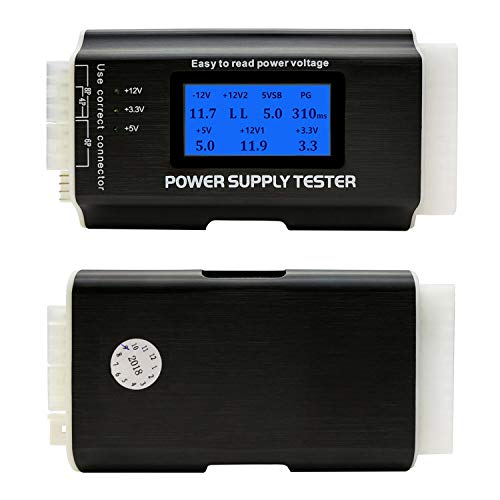
- PC power supply tester for troubleshooting to assess power delivery
- Extra HDMI or DisplayPort cables for swapping
- A known-good monitor or computer to cross-test


Before You Start
Prepare a clean workspace and ensure all devices are unplugged before handling internal components. Take care with static electricity and avoid touching live connectors. Have a clear plan to test each component in isolation to prevent misdiagnosis. Time estimates: 30–60 minutes for initial checks, longer if you replace parts.
Step-By-Step: How To Fix A Black Screen On Your Monitor
- Power cycle the setup: turn off the monitor and computer, unplug, wait 30 seconds, then plug back in and power on.
- Check power indicators: confirm the monitor’s power LED lights up. If not, test with a different outlet or power cable.
- Inspect video connections: reseat current cables, try a new HDMI or DisplayPort cable, and verify that the input source is correct on the monitor.
- Test the backlight: use the LCD monitor backlight tester to determine if the backlight layer is functioning. If the backlight is dead, you may need service or a replacement panel.
- Isolate the signal path: connect the computer to a different monitor or use a different computer with the same monitor to see if the issue follows the display or stays with the source.
- Check for GPU or video port issues: if possible, reseat or test with another graphics card or onboard port. Disable sleep settings temporarily and try an external display reboot.
- Assess the power supply: use the PC power supply tester for troubleshooting to confirm rails are delivering correct voltages. Replace the supply only if readings are out of spec.
- Look for symptoms on startup: BIOS splash screens, error beeps, or diagnostic LEDs can indicate a motherboard or PSU problem. Note any pattern for reference.
- Test with minimal setup: disconnect peripherals and run with only essential components to rule out peripherals as the cause.
- Document findings: record which tests pass or fail to guide any professional assessment if needed.
- Decide on next steps: if a tester shows a faulty backlight or power supply, arrange repairs or replacement through a qualified technician.
- Final verification: once components are replaced or reseated, reassemble, power on, and ensure the display shows a normal signal and image.
Troubleshooting
| Symptom | Likely Cause | Fix | Prevention |
|---|---|---|---|
| Monitor stays completely dark | Backlight failure or power supply issue | Test backlight with tester; check power supply with tester; replace failing component | Handle power connections carefully; use surge protection |
| No video signal, but monitor lights | Bad video cable or port | Replace cable; try alternate port or adapter | Use high-quality cables; avoid bending cables |
| Image flickers or dim | Inadequate backlight or failing inverter | Backlight tester confirms; replace inverter or panel as needed | Keep monitor in cool, ventilated area |
| Beep codes or POST errors | Motherboard or GPU issue | Reseat components; test with alternate hardware | Documentation of codes helps future diagnosis |
Common Mistakes
- Assuming the problem is solely software when the display remains black after boot
- Using damaged or frayed cables that obscure signals
- Ignoring static precautions during hardware handling
- Rushing to replace a component without proper testing
Taking a methodical approach and using the right diagnostic tools reduces unnecessary part replacements and speeds up resolution.
Tips For Best Results
Label cables during testing to keep track of connections. Use the same source hardware when testing multiple displays to ensure consistency. Calibrate color and brightness after repairs to restore optimal viewing experience. Keep spare cables and a basic tester kit on hand for quick future checks.
Call A Professional
Seek professional help if you encounter any of these signs: persistent black screen after power-on with no diagnostic indicators, unusual heat or smells from the monitor or power supply, or tester readings outside safe ranges. If you lack experience with internal components or psu testing, a technician can diagnose safely and accurately.
FAQ
What is the first thing to check when a monitor shows a black screen?
Verify power, input source, and cables. If these pass, test the backlight and power supply with appropriate tools.
Can a bad HDMI cable cause a black screen?
Yes, a faulty HDMI/DisplayPort cable can produce no image even when devices are powered correctly.
Is it safe to open my monitor to check the backlight?
Only if you are experienced with electronics. Openings can expose high-voltage areas; consult a professional if unsure.
What should I test first with a bad video output?
Test the power supply and cables, then swap the signal source with a known-good device.
How can I prevent black screens in the future?
Use surge protection, avoid overheating, keep firmware and drivers updated, and handle cables gently.
When should I replace a monitor due to a black screen?
If backlight failure or internal faults persist after professional repair options, replacement is often the most reliable solution.
Buying Guide
When choosing a monitor or testing tools, consider size, resolution, and the intended setup. For testers, prioritize accuracy, portability, and compatibility with common interfaces. For displays, look at brightness, contrast, color accuracy, and panel type. A well-balanced setup includes reliable cables and a basic tester kit to simplify future maintenance.
Key buying factors include:
- <bSize: Match screen size to your workspace and viewing distance.
- <bResolution and color accuracy for precise work or media consumption.
- <bNoise level and energy efficiency for testers and displays alike.
- <bControls and on-screen display features for easy calibration.
- <bPlacement considerations such as desk space, mounting options, and glare reduction.
For diagnostic tools, aim for a compact kit that includes an LCD backlight tester, HDMI signal tester, and a PC power supply tester. Compare models based on ease of use, testing ranges, and compatibility with standard connectors.
Leave a Reply