How to Clean an Xbox Controller Safely and Effectively
Keeping an Xbox controller clean helps maintain grip, performance, and longevity. This guide walks through practical steps using common cleaning supplies suitable for American homes. It covers surface cleaning, button care, and safety considerations to prevent moisture from reaching internal electronics.
Quick Answer
Detach accessories and power off the controller. Wipe surfaces with a microfiber cloth lightly dampened with isopropyl alcohol or use alcohol wipes for tough spots. Use a soft-bristle brush to remove debris from seams and analog sticks. Dry thoroughly before reconnecting and testing. Avoid soaking the controller or applying excess liquid near openings.
What You’ll Need
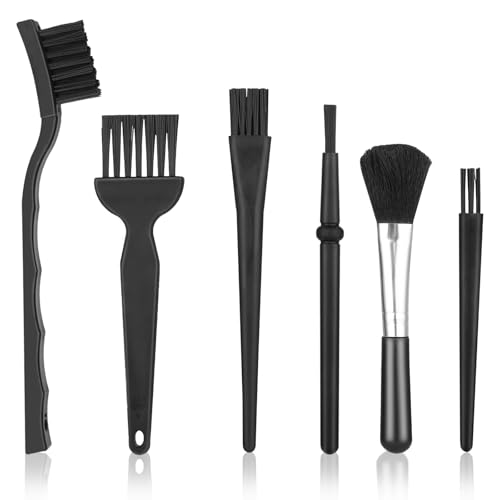
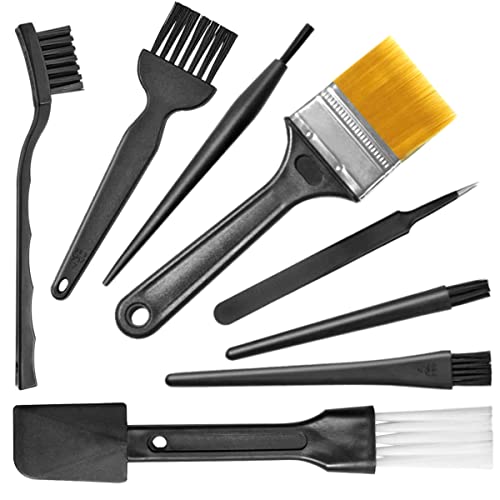
- Xbox controller cleaning kit
- Microfiber cloth
- Soft-bristle cleaning brush
- Isopropyl alcohol (70% or higher)
- Electronic wipes (70% isopropyl alcohol)
- Soft, lint-free swabs

Before You Start
Safety first: power down the console and remove any detachable batteries or charging docks. Work in a well-lit area and avoid cleaning around the USB ports or battery compartment with excessive liquid. Prepare the controller by removing grips or silicone covers if present. Time estimate: 15–30 minutes for a thorough clean. Do not submerge the controller in liquid. Save for detailing after every gaming session to prevent buildup.
Step-By-Step: How To Clean An Xbox Controller
- Power off the controller and disconnect from any charging cables. Let it cool if recently used.
- Wipe the exterior with a microfiber cloth lightly dampened with isopropyl alcohol. Gently rub the top, sides, and back to remove oils and fingerprints.
- For stubborn smudges, use a soft-bristle cleaning brush. Work around seams, grip textures, and around the analog sticks with careful, short strokes.
- Clean the analog sticks by rotating and pressing gently while wiping. If sticks feel gritty, use a dry brush first to lift debris before alcohol.
- Use electronic wipes on hard-to-reach areas such as around the D-pad, triggers, and face buttons. Avoid over-wetting near ports.
- Dip a cotton swab in isopropyl alcohol and clean the button gaps and micro-switch openings with light pressure. Stop if resistance increases or you hear clicks unfamiliar.
- Wipe the entire surface again with a dry microfiber cloth to remove any remaining moisture and to buff surfaces to a clean finish.
- Let the controller air-dry for a few minutes before reconnecting to power or accessories. Do a quick functional test after drying to confirm button responsiveness.
- Inspect for remaining grime; repeat targeted cleaning on problem areas if needed. Reattach removable grips or covers after the controller is fully dry.
- Store cleaning supplies away from children and pets. Keep liquids sealed and labeled for future use.
- Perform a routine clean every few weeks or after intensive gaming sessions to prevent build-up.
Troubleshooting
| Symptom | Likely Cause | Fix | Prevention |
|---|---|---|---|
| Sticky buttons after cleaning | Excess moisture or residue | Wipe with dry microfiber and re-dry | Use minimal liquid and quick-dry techniques |
| Analog sticks drift | Debris in the stick housing | Gently brush around the base and retest | Clean monthly or after heavy gaming sessions |
| Ports not charging | Lubricants or moisture near ports | Use dry swab to清wipe; avoid liquid near ports | Avoid liquids near openings |
| Buttons feel stiff | Sticky residue | Wipe with alcohol wipe and dry thoroughly | Clean regularly to prevent buildup |
Common Mistakes
- Using too much liquid or soaking the controller
- Applying cleaners directly to openings or buttons
- Using abrasive materials that scratch finishes
- Not allowing sufficient drying time before use
These missteps can damage internal components or degrade grip texture over time. Always apply liquids sparingly and opt for gentler, controlled cleaning methods.
Tips For Best Results
- Keep a light cleaning schedule to prevent grime buildup rather than performing deep cleans often.
- Use a dedicated microfiber cloth for screens and a separate cloth for controllers to avoid cross-contamination of debris.
- Store the controller in a clean, dry space away from direct sunlight to protect surfaces and buttons.
- Rotate cleaning duties with a simple brush to maintain grip texture without wearing down material.
Call A Professional
Consider professional support if the controller has internal moisture, a nonresponsive USB port, or persistent button malfunctions after cleaning. Seek certified repair services when you notice corrosion, water damage, or unusual heat during use. If warranty coverage may be affected by DIY cleaning, consult the manufacturer’s guidance before attempting more invasive care.
FAQ
Can I use alcohol wipes on the entire controller?
Yes, you can use 70% isopropyl alcohol wipes on exterior surfaces, but avoid soaking and never apply liquid in openings.
Should I remove the batteries before cleaning?
Yes, remove batteries or disconnect any power sources to minimize risk during cleaning.
Is it okay to use hot water or dish soap?
Not recommended. Use isopropyl alcohol and microfiber cloths to avoid residue and potential moisture damage.
How often should I clean my Xbox controller?
Clean the exterior every few weeks or after particularly sweaty gaming sessions, and perform a deeper clean every few months if needed.
Buying Guide
When choosing cleaning supplies for an Xbox controller, consider size compatibility, surface compatibility, and ease of use. Key buying factors include:
- Size and fit: Ensure microfiber cloths and brushes can navigate the controller’s curves and button layouts without abrading textures.
- Noise level: Soft brushes and lint-free cloths reduce noise while cleaning sensitive areas.
- Energy efficiency: Not a primary concern for cleaning supplies, but choose energy-efficient electric tools if you use powered cleaning devices.
- Controls: Simple wipe-and-dry methods with alcohol wipes minimize risk to internal electronics.
- Placement: Store kits in a dry, accessible place near gaming gear to encourage regular upkeep.
Compare bundles that include a microfiber cloth, soft-bristle brush, and isopropyl alcohol. Look for items designed for electronics to ensure safe use around ports and buttons. If you frequently clean multiple devices, a comprehensive kit with varied brush sizes and alcohol wipes can be a time-saver. Always verify that wipes are suitable for electronics and that fabrics won’t shed lint onto the controller.
Leave a Reply