How to Clean Under Mouse Buttons
Dust, grime, and debris can accumulate beneath a computer mouse’s buttons, leading to sticky presses or erratic clicks. This guide outlines a safe, effective way to clean under mouse buttons using common electronics cleaning tools. Clear the area, protect sensitive surfaces, and follow simple steps to restore smooth operation without damaging the device.
Quick Answer
Power off the computer and disconnect the mouse. Use compressed air to dislodge debris, then a soft bristle brush for precision cleaning. Wipe exposed surfaces with 70% isopropyl alcohol wipes and allow to dry completely before use.
What You’ll Need
- Compressed air duster electronics with nozzle for keyboard and mouse
- Soft bristle precision cleaning brush electronics keyboard mouse
- Isopropyl alcohol wipes 70% for electronics keyboard mouse

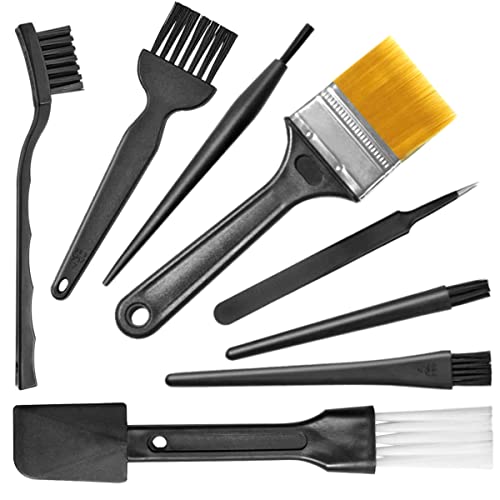

Before You Start
Shut down the computer and detach the mouse from the USB-C/USB receiver. Work in a clean, well-lit area and place a soft cloth beneath the mouse to catch any debris. Avoid excessive moisture near electronic contacts. If the mouse is water-damaged or powered by batteries, proceed with extra caution and replace batteries if needed. Do not use liquids directly on internal components and never force parts apart.
Step-By-Step: How To Clean Under Mouse Buttons
- Power down and unplug the mouse from the computer to prevent any electrical issues.
- Hold the mouse with the button side facing down and use the compressed air duster to blow between and under the buttons. Short bursts work best to avoid condensation.
- Rotate and wiggle the mouse slightly to encourage dust to move toward accessible gaps.
- Use the soft bristle precision cleaning brush to gently whisk away loosened dust from under the button area and crevices. Avoid pressing hard on delicate switches.
- Inspect the button gaps for visible debris. If stubborn particles remain, reapply a light puff of air and brush at a different angle.
- Lightly wipe the outer surfaces and around the button perimeter with a 70% isopropyl alcohol wipe. Do not oversaturate; ensure the wipe is just damp.
- Allow the mouse to air-dry fully for a few minutes before reconnecting to the computer.
- Test each button gently after reconnecting to verify smooth action and confirm no moisture remains in gaps.
Troubleshooting
| Symptom | Likely Cause | Fix | Prevention |
|---|---|---|---|
| Buttons feel sticky after cleaning | Residual moisture or adhesive | Wipe again with a dry cloth and allow to dry fully | Wait longer between wipes; use minimal moisture |
| Unresponsive button | Debris stuck under the button or switch | Re-run compressed air and brush | Regular, light cleanings |
| Unusual button travel or grinding | Dust compacted in crevices | Careful brushing and air, avoid forcing | Gentle maintenance schedule |
| Intermittent connection after cleaning | Moisture on connectors | Dry thoroughly and reconnect | Keep wipes away from connectors |
Common Mistakes
- Using too much liquid near internal components
- Blowing air too aggressively which can drive debris deeper
- Forcing the mouse open or prying at seals
- Neglecting to dry completely before reassembly
Tips For Best Results
- Apply a light touch with the brush to avoid damaging delicate switches.
- Keep the compressed air nozzle at a distance and avoid direct contact with the housing.
- Follow up with a dry microfiber cloth to remove any remaining dust around the edges.
- Schedule routine cleanings to prevent buildup that affects button responsiveness.
Call A Professional
Seek professional help if the mouse has internal water exposure, a swollen battery, or if cleaning does not restore function after multiple attempts. Also contact a pro if the device is under warranty and opening it could void coverage.
FAQ
Can I use household cleaners to clean under mouse buttons?
Avoid household cleaners that contain ammonia or harsh chemicals. Use isopropyl alcohol wipes at 70% and minimal moisture.
How often should I clean under the mouse buttons?
Light cleanings every few months can prevent buildup; more frequent cleaning may be needed in dusty environments.
Is compressed air safe for all mice?
Yes for most computer mice, but avoid prolonged use if the device is not designed for such cleaning or if moisture forms in crevices.
What if the buttons still stick after cleaning?
There could be wear or damage to the switch; consider replacement parts or professional inspection.
Buying Guide
When selecting tools for cleaning under mouse buttons, consider size, nozzle precision, and compatibility with electronics. A compact compressed air duster with a precision nozzle makes it easier to target tight gaps. A soft bristle precision cleaning brush should be gentle enough for delicate switches. Isopropyl alcohol wipes at 70% provide effective surface cleaning without leaving residue. Look for products that are designed for electronics and come with clear usage instructions. Think about your setup—desktop or laptop, number of devices, and how frequently you plan to clean. A small, organized cleaning kit typically offers the best value and ensures you have the right tools on hand when needed.
Leave a Reply