How to Clean PC Fans for Better Performance and Longevity
Dust buildup can reduce cooling efficiency, increase noise, and shorten a PC’s life. Cleaning PC fans is a straightforward maintenance task that most users can perform with a few common tools. This guide provides practical steps, safety tips, and troubleshooting to keep cooling systems running smoothly.
By following a structured approach, users can remove dust from case fans, CPU coolers, and power supply fans without harming components. The process outlined here is suitable for most desktop configurations and can be adapted for laptops with internal fans where accessible.
Quick Answer
Power down the PC, unplug it, and disconnect all cables. Use a 12 oz compressed air duster for PC computer fans to blow dust out from the opposite side of the blade. For stubborn particles, employ an anti-static electronics cleaning brush set for computer fans and microfiber electronics cleaning cloths dusting kit for PC components. Clean in a well-ventilated area and avoid direct contact with fan bearings or the blades.
What You’ll Need
- 12 oz compressed air duster for PC computer fans
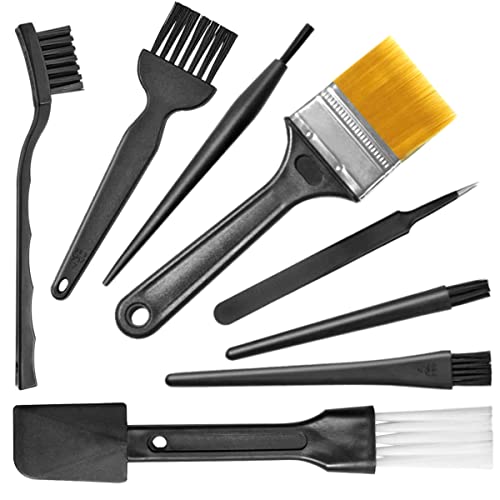
- anti-static electronics cleaning brush set for computer fans
- microfiber electronics cleaning cloths dusting kit for PC components


Before You Start
Safety first: always power down completely and unplug the power cord before touching any internal components. Ground yourself to prevent static discharge, and avoid spinning fans by hand as rapid movement can damage bearings. Prepare the workspace in a clean, well-ventilated area, and place the PC on a stable surface. Time estimates vary, but plan for 20–40 minutes including disassembly and reassembly if you must remove panels or components.
Key cautions: never use liquid cleaners inside the chassis, avoid touching motherboard traces, and do not spray compressed air directly into a heatsink or fan bearing at close range. If a fan is making grinding sounds or refuses to stop when powered off, proceed with caution or seek professional help.
Step-By-Step: How To Clean PC Fans
- Power down and unplug the PC; disconnect peripherals to prevent accidental powering during cleaning.
- Open the case side panel to access fans and filters. If your system has removable dust filters, take them out for cleaning.
- Place the PC in a ventilated area. Use a static-safe mat if available, and keep liquids far away from electronics.
- Hold the fan blades in place and use the 12 oz compressed air duster to blow dust away from the blades. Keep a short, controlled burst and avoid lingering spray on one spot.
- If dust clings to heatsinks or corners, use the anti-static electronics cleaning brush set for computer fans to gently dislodge debris without touching electrical contacts.
- Wipe exterior surfaces, grilles, and nearby components with microfiber electronics cleaning cloths dusting kit for PC components to remove clouding dust and avoid fiber shedding.
- Re-seat any fans that were loosened during cleaning and reattach filters if used. Replace side panel and reconnect power.
- Power on briefly to verify proper fan operation, then shut down again to complete reinstall and tidy up cables for improved airflow.
- Repeat the process seasonally or as dust levels warrant, especially in dry, high-dust environments or rooms without air filtration.
- Document any unusual noises or vibrations and plan maintenance accordingly to minimize downtime.
- If multiple fans are dirty, consider a periodic full-system cleaning routine to maintain optimal temperatures and airflow.
- Dispose of used cleaning materials safely and store tools in a designated kit to streamline future maintenance.
Troubleshooting
| Symptom | Likely Cause | Fix | Prevention |
|---|---|---|---|
| Fan hard to spin | Dust buildup or partial obstruction | Clear dust with compressed air and brushes; check for debris | Regular cleaning schedule; clean intake filters |
| Fan continues to be noisy | Bearing wear or misalignment | Inspect mounting and replace noisy fan if necessary | Gentle cleaning; avoid direct contact with bearings |
| Fan not spinning on boot | Loose connector or BIOS fan control setting | Check cables and BIOS/firmware settings; reseat connector | Label cables during disassembly to ease reassembly |
| Unbalanced fan vibration | Imbalanced blades after dust removal | Reinstall or replace the fan; verify mounting screws | Handle blades gently during cleaning |
Common Mistakes
- Spraying water or liquids near electronics
- Removing screws without remembering placement or order
- Using too much force when brushing or blowing air
- Neglecting to ground yourself, causing static damage
Tips For Best Results
- Plan to clean during a dry day with good airflow in the room to prevent condensation on components.
- Hold the can upright to avoid spraying liquid propellant onto the board.
- Keep all components turned off and unplugged during cleaning to minimize risk.
- Clean intake and exhaust sides separately to maximize dust removal efficiency.
- Combine microfiber cloths with brushes for a thorough but gentle cleaning.
Call A Professional
If a fan shows persistent grinding, loud squeaks, or if cleaning does not improve temperatures, consider professional service. Stop and seek help if you notice burnt smells, smoke, or any signs of electrical damage. Complex cleaning of liquid-cooled systems or integrated cooling paths often benefits from expert oversight.
FAQ
How often should I clean PC fans?
In general, every 3–6 months is a good interval for most desktops, with more frequent cleaning in dusty environments.
Can I use a vacuum to remove dust?
Vacuuming is not recommended for internal components; use compressed air and brushes to avoid static discharge and blade damage.
Is it safe to clean while the PC is still partially mounted?
Yes, as long as the power is off and the area is well ventilated, but removing the case panel can make the process easier.
What’s the best way to prevent dust buildup?
Use high-quality dust filters, keep the room clean, and establish a regular cleaning routine.
Should I oil bearings after cleaning?
No, most modern PC fans use sealed bearings that do not require oiling.
My fan is still noisy after cleaning—what now?
If cleaning doesn’t resolve the noise, the fan may be worn or damaged and might need replacement.
Buying Guide
When choosing cleaning tools for PC fans, consider compatibility, effectiveness, and safety. Look for a compact 12 oz compressed air duster with a clean spray feel and minimal moisture risk. Anti-static brushes should be soft enough to avoid blade damage but effective on dust clusters. Microfiber cloths should be lint-free and machine washable for repeated use. Evaluate how often you clean and the number of fans in your system to determine how many tools you need. A compact cleaning kit that covers air, brushes, and cloths helps maintain consistent results and protects sensitive electronics.
Leave a Reply