How to Clean iPad Charging Port
Keeping the iPad charging port clean helps maintain reliable charging and data transfer. Over time, dust, lint, and pocket debris can accumulate and interfere with the connector. This guide provides practical steps using safe tools to clean the port without damaging the device.
Quick Answer
Power off the iPad before cleaning. Use a gentle cleaning method and avoid metal objects that could bend pins. Start with a soft brush or air, then inspect the port for remaining debris and test charging.
What You’ll Need
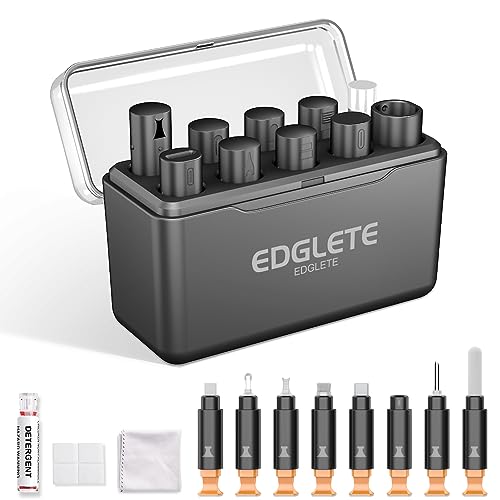
- iPad charging port cleaning brush kit
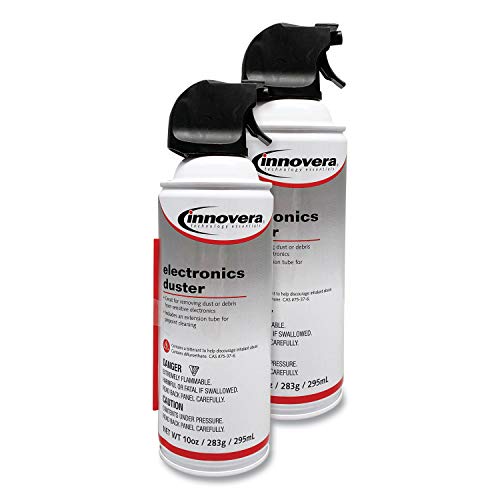
- electronics air dust blower for iPad port
- iPad charging port cleaning tool set USB-C/Lightning

Before You Start
Work in a clean, well-lit area. Power off the iPad completely and avoid applying liquids. Do not insert anything metallic or sharp into the port. If the device shows signs of water damage or irregular charging, stop and seek professional help.
Step-By-Step: How To Clean iPad Charging Port
- Power off the iPad and disconnect any cables.
- Inspect the port with a bright light to identify visible debris.
- Use a soft brush from the iPad charging port cleaning brush kit to gently sweep lint from the opening.
- Hold the device upright and use the electronics air dust blower for the iPad port to puff out dust without touching the metal contacts.
- If stubborn debris remains, use the iPad charging port cleaning tool set USB-C/Lightning with a non-metal pick at a shallow angle; apply minimal pressure.
- Wipe the exterior of the port area with a dry microfiber cloth to remove any dust around the enclosure.
- Reconnect a charging cable to test alignment; wiggle slightly if the connection seems loose, but stop if resistance is felt.
- Repeat the cleaning steps once more if charging is intermittent, ensuring the port is dry before testing.
Troubleshooting
| Symptom | Likely Cause | Fix | Prevention |
|---|---|---|---|
| Cannot start charging | Debris blocking the port | Clean with brush and air as described | Regular light clean after use |
| Charging stops unexpectedly | Dust or lint in the port | Re-clean and re-test with cable | Store iPad during travel to reduce debris |
| Visible corrosion or moisture | Water exposure | Do not charge; seek professional service | Keep device dry; use protective case |
| Loose cable fit | Worn or bent port | Inspect port integrity; avoid forcing connector | Use high-quality cables; replace damaged port |
Common Mistakes
- Using metal tools or sharp objects inside the port
- Applying liquids near the connector
- Rushing the cleaning process and skipping inspection
Taking time to inspect and clean with the right tools reduces the risk of damage and improves results.
Tips For Best Results
- Use a soft brush first to dislodge loose debris before blowing air.
- Work in a dust-free area to prevent new particles from entering the port.
- Clean the surrounding surface to keep the port opening clear after use.
- Test charging with an official or certified cable to verify compatibility.
Call A Professional
Seek professional help if the iPad shows signs of physical damage, persistent charging issues after cleaning, or if moisture is detected inside the port. Do not attempt internal repairs yourself, as this can void warranties and cause more damage.
FAQ
Can I use water to clean the iPad charging port?
Avoid liquids inside the port. Use dry methods and compressed air if needed.
Will cleaning the port void my warranty?
Cleaning with non-damaging methods generally does not void warranty, but avoid opening or disassembling the device.
How often should I clean the charging port?
Clean as needed when charging becomes unreliable or debris is visible.
Is it safe to use a cotton swab?
Only if it is dry and used very gently to remove loose debris; avoid leaving fibers behind.
Buying Guide
When choosing tools for cleaning the iPad charging port, consider size, ease of use, and compatibility with USB-C or Lightning ports. Look for a compact cleaning kit that includes a soft brush, air blower, and plastic pick with rounded edges to minimize risk of port damage. Noise level is usually negligible for these devices, but ensure the blower is rated for electronics to avoid moisture or heat buildup. Consider a kit with protective cases or caps for storage to prevent dust accumulation when not in use. For frequent travelers, a compact tool set that fits in a small pouch helps maintain port cleanliness on the go.
Leave a Reply