How to Clean an iMac Hard Drive for Better Performance
Regular maintenance helps keep an iMac running smoothly by reclaiming storage, improving responsiveness, and extending drive life. This guide explains practical steps to clean and optimize your iMac’s hard drive without risking data loss. It covers safe routines, diagnostic checks, and simple tools that fit a typical American home setup.
Quick Answer
Clear out junk files, review large and old files, empty Trash, and run a health check. Use built-in macOS tools like Storage Management and Disk Utility, plus dedicated Mac disk cleanup software and Mac data wipe software for secure erasing when needed. Regular maintenance should take about 30–60 minutes depending on data size.
What You’ll Need
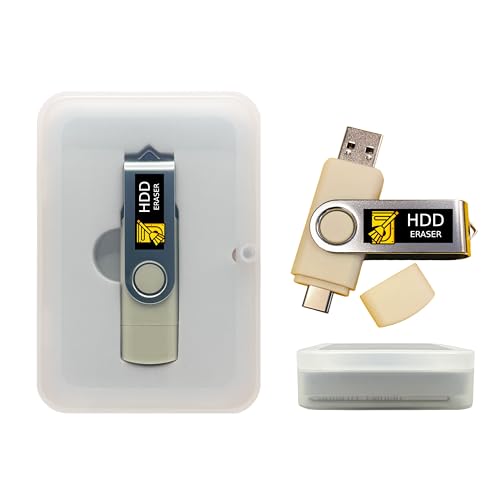
- Mac data wipe software secure erase
- Mac disk cleanup software
- Mac hard drive health diagnostic tool

Before You Start
Before beginning, ensure you have a current backup via Time Machine or another reliable method. Close all apps and connect the Mac to power if using a laptop. Do not attempt to erase or modify the system partition unless you know what you’re doing. Plan for a window of 30–60 minutes for typical cleanups, longer if high data volumes are involved.
Step-By-Step: How To Clean An iMac Hard Drive
- Open the Apple menu and choose About This Mac, then click Storage to inspect what’s taking space.
- Click Manage to access Storage Management and review categories like Applications, Documents, and iCloud Drive.
- Empty the Trash and delete large old files you no longer need. Move keepers to a named folder and back them up if necessary.
- Remove unused applications and clear caches. Use Mac disk cleanup software or manual methods to purge app caches, log files, and temporary data.
- Run Disk Utility First Aid to check the health of the drive and repair disk permissions and directory structure.
- For deeper cleanup, consider a Mac data wipe software secure erase for securely erasing unused space or sensitive items, following the tool’s instructions.
- Review large and old files with Finder by sorting by file size and date. Move or delete items you won’t need.
- Consider organizing photos, documents, and downloads into a structured folder system to prevent future clutter.
- Restart the iMac to complete processes and verify that available storage has improved.
- Schedule periodic checks using Storage Management and health diagnostics to maintain performance over time.
- Optionally run a Mac hard drive health diagnostic tool to monitor SMART attributes and overall drive health for early warnings.
- If performance remains sluggish after cleanup, explore external storage or upgrading RAM if applicable.
Troubleshooting
| Symptom | Likely Cause | Fix | Prevention |
|---|---|---|---|
| Mac feels slow after upload or heavy use | Accumulated junk and local caches | Run cleanup and Disk Utility First Aid | Regular monthly cleanup |
| Disk Utility reports errors | File system corruption | Use First Aid and back up data | Keep backups and avoid forced shutdowns |
| Low free space warning | Cluttered Downloads or Applications folder | Delete or archive large files | Automate periodic cleanup |
| SMART status warning | Drive nearing failure | Back up immediately and consult a professional | Regular health checks |
Common Mistakes
- Deleting system files or macOS components
- Skipping backups before cleanup or secure erase
- Ignoring large, lingering files that can be archived externally
- Relying on a single cleanup method without verification
Tips For Best Results
- Use Storage Management to identify space hogs and automatically optimize storage with iCloud Drive options.
- Schedule periodic cleanups and health checks to prevent buildup over time.
- Archive old files to external drives or cloud storage to free local space without data loss.
- Keep macOS updated; newer updates include better storage management and performance improvements.
- When performing a secure erase, ensure you truly want the data unrecoverable and that backups exist.
Call A Professional
Consider contacting a professional if you notice recurring disk issues, frequent crashes, or performance degradation after cleanup. Stop signs include persistent Disk Utility errors, frequent SMART warnings, or if the drive shows signs of physical damage. A pro can assess drive health, extract data safely, and advise on replacement options.
FAQ
Is it safe to clean my iMac hard drive myself?
Yes, with a current backup and careful use of built-in tools and reputable software, cleaning up space is safe and effective.
What’s the difference between macOS Storage Management and third-party cleanup software?
Storage Management handles common space issues, while third-party tools offer deeper cleaning and secure erase options.
Should I erase free space for security?
Only if you have sensitive data and need irreversible deletion; otherwise, routine cleanup is sufficient.
How often should I run a health diagnostic tool?
Every few months or after major system changes to monitor drive health and prevent surprises.
What if I don’t have a backup?
Back up first; data loss during cleanup can occur if errors happen or you delete needed files.
Is upgrading to external storage a good idea?
External storage is a practical way to offload large files and keep the internal drive lean for faster performance.
Can I use the same tools on an iMac with Apple Silicon?
Yes, most modern cleanup tools support Apple Silicon, but confirm compatibility before installation.
Buying Guide: Choosing The Right Tools For iMac Drive Maintenance
When selecting tools to assist with iMac drive maintenance, several factors matter. Look for compatibility with your macOS version and hardware, ease of use, and proven safety features. Consider the balance between on-device cleanup and secure erasure capabilities, especially if data sensitivity is a concern.
Key Buying Factors
- Size and scope: Choose software that covers junk removal, cache clearing, and large file identification without unnecessary features.
- Noise level and performance impact: Software should run quietly and not slow down the system during use.
- Energy efficiency: Background maintenance should be lightweight and not drain power excessively on laptops.
- Controls and safety: Look for clear prompts, backups, and secure erase options with reversible steps when possible.
- Placement and accessibility: Desktop interfaces should be intuitive and accessible from Finder or the System Preferences panel.
Consider reading user reviews and checking for compatibility with your exact macOS version. If the iMac uses a fusion drive or a secondary SSD, verify that the tool supports mixed storage. A well-chosen set of tools helps maintain performance without complexity, keeping the system reliable for daily use.
Leave a Reply