How to Clean a Mousepad: A Practical Guide for a Fresh, Responsive Surface
Keeping a mousepad clean helps maintain smooth tracking, extend its life, and reduce the spread of grime on your desk. This guide breaks down simple steps to clean different types of mousepads, from fabric to hard surfaces, using common household tools and purpose-made products.
Whether you’re gaming, working from home, or juggling multiple devices, a clean mousepad contributes to better accuracy and a tidier workspace. The methods below emphasize safety and effectiveness without damaging the pad’s texture orprint.
Quick Answer
Quick steps: check care labels, remove loose debris, spot-clean with a microfiber cloth or cleaning wipes, wash fabric pads with mild soap and water, air-dry fully. For hard pads, wipe with electronics wipes or a damp microfiber cloth. Allow complete drying before reuse.
What You’ll Need
- Mouse pad cleaning kit with brush and cleaning solution
- Microfiber cleaning cloth for electronics and mousepad
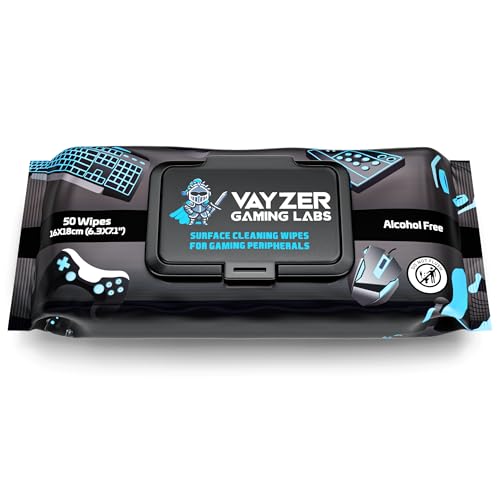
- Electronics cleaning wipes for keyboard and mousepad


Before You Start
Prepare a clean, well-lit workspace. Check the pad’s label for any special washing instructions and test a small, inconspicuous area first if unsure about materials. Safety notes: avoid harsh solvents that could degrade fabric or print. Time estimate: 10–30 minutes depending on pad type and drying time.
Critical cautions: do not machine-wash leather or specialized gaming pads unless the manufacturer indicates it is safe. Do not use excessive heat to dry, which can warp or fade prints.
Step-By-Step: How To Clean A Mousepad
- Remove loose dust and crumbs by gently tapping the pad and brushing with the included brush or a soft-bristle brush.
- For fabric mousepads, mix a small amount of mild soap with lukewarm water. Dip a microfiber cloth into the solution and wring it out well.
- Gently wipe the surface in a circular motion, focusing on stained or sweaty areas. Avoid soaking the pad unless it is designed to be washable.
- Rinse the cloth in clean water and wipe away any soap residue from the pad. For heavy grime, repeat with a fresh soapy cloth.
- For hard or rigid mousepads, use electronics cleaning wipes or a damp microfiber cloth to remove grime and fingerprints. Dry with a clean cloth.
- If the pad is machine-washable per its label, place it in a gentle cycle with mild detergent, then air-dry flat away from direct heat.
- Patience is key: ensure all moisture is gone before placing devices on the pad to prevent slipping or staining of screens.
- Inspect the pad after drying. If stains persist, repeat the cleaning cycle or consider replacement if the texture is degraded.
- Reassemble your workspace and test mouse tracking to confirm improved performance after cleaning.
- Store and maintain the pad by occasionally repeating a light wipe-down to prevent buildup.
Troubleshooting
| Symptom | Likely Cause | Fix | Prevention |
|---|---|---|---|
| Persistent stains that won’t lift | Deep-set oils or older grime | Spot clean with concentrated cleaner making sure to rinse well | Regular wipe-down after intense gaming or long work sessions |
| Streaks after cleaning | Soap residue or dampness | Wipe with a clean, damp microfiber cloth and air-dry completely | Use minimal soap and avoid soaking |
| Pad feels sticky | Residual cleaner or moisture | Dry thoroughly with a lint-free cloth and air-dry | Test on a small area first |
| Uneven mouse tracking | Warped or heavily worn surface | Replace pad if texture is damaged | Clean regularly to prevent buildup |
Common Mistakes
- Using harsh chemicals or solvents that can discolor or degrade the pad
- Soaking fabric pads for extended periods, which may warp or fade print
- Using a dishwasher or washing machine on non-washable pads
- Skimping on drying time, leaving moisture that can affect performance
By avoiding these missteps, you extend the life of the pad and maintain optimal tracking.
Tips For Best Results
- Frequency matters: a quick wipe-down after long sessions helps prevent buildup.
- For sensitive electronics surfaces, rely on microfiber cloths and electronics-safe wipes to reduce risk of damage.
- Always test cleaning methods on a small, inconspicuous area first.
- Store pads flat to prevent warping; avoid folding or bending while drying.
- If you use a gaming mouse or high-precision setup, consider reserving a dedicated wipe-down ritual to preserve glide and accuracy.
Call A Professional
Consider contacting a professional if the pad has extensive staining near printed artwork, warping, or persistent slick spots that affect performance after multiple cleanings. Seek professional cleaning or replacement when the surface is severely degraded or if the pad shows signs of adhesive failure or fraying edges.
FAQ
Can I put a mousepad in the washing machine?
Only if the care label explicitly allows it. Most fabric pads can be washed on a gentle cycle, then air-dried flat.
What should I use to clean a hard plastic or metal mousepad?
Use electronics cleaning wipes or a damp microfiber cloth with mild soap, then dry thoroughly.
How long does it take for a mousepad to dry?
Fabric pads typically air-dry within a few hours; hard pads dry faster, usually under an hour depending on humidity.
Is it okay to use alcohol on my mousepad?
Alcohol can dry out or fade some materials; test first and use sparingly on non-fabric surfaces.
How can I prevent future buildup on my mousepad?
Wipe down after use, keep hands clean, and place the pad in a well-ventilated area during drying.
Buying Guide
When choosing a mousepad, several factors influence performance and maintenance suitability. Consider size, so it accommodates your desk and mouse movement. Noise level matters for hard pads—some tracks produce audible noise on glide surfaces. Energy efficiency is less relevant for pads, but choosing low-lint materials helps keep environments clean. Controls refer to any built-in features if you choose a pad with integrated lighting or ergonomic supports. Placement matters: a flat, non-slip base keeps the pad stable and prevents misalignment during use. Compare pads by texture (fabric vs hard), washability, and compatibility with your mouse sensor for optimal precision.
For maintenance, select products that complement cleaning routines, such as a mouse pad cleaning kit with brush and cleaning solution, microfiber cleaning cloth for electronics and mousepad, and electronics cleaning wipes for keyboard and mousepad. These items help keep surfaces pristine and reduce the need for frequent replacements. If uncertain between fabric and hard options, assess your typical work style: fast, broad movements may favor a fabric pad, while easy-clean, water-proof surfaces suit busy environments.
Leave a Reply