How to Clean a MacBook Air Safely and Effectively
Keeping a MacBook Air clean helps maintain performance, prolong battery life, and extend the device’s lifespan. This guide covers safe, practical steps to remove dust, wipe surfaces, and protect sensitive components without voiding warranties. Readers will find a straightforward method, professional tips, and safe tools designed for Apple laptops.
Quick Answer
Quick Method: Power down the MacBook Air, unplug any accessories, and use a soft, lint-free cloth to wipe the exterior. For keyboard dust, use a gentle puff of compressed air from a short distance, then brush crumbs away with a small anti-static brush. Avoid liquid cleaners directly on the surface. If needed, lightly dampen a cloth with a 70% isopropyl wipe and gently wipe the trackpad and keyboard.
What You’ll Need
- MacBook Air compressed air dust blower keyboard cleaner
- MacBook Air microfiber cleaning cloth set isopropyl alcohol wipes
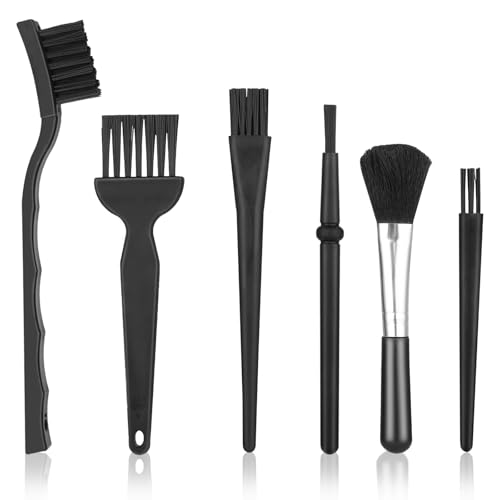
- Laptop anti-static brush keyboard cleaner compatible with MacBook Air

![Electronic Wipes Screen Cleaner Streak-Free [2 Pack x40] Computer Screen Wipes, TV Screen Cleaner Wipes, Monitor Wipes for Smart TV, Laptop, iPhone, ipad and more - [Microfiber Cloth + 80 Wipes]](https://m.media-amazon.com/images/I/41dbvRyLs-L._SL500_.jpg)
Before You Start
Prepare a clean, well-lit workspace on a soft surface. Turn off the MacBook Air and disconnect power before cleaning. Use anti-static steps to avoid static discharge when handling internal components. Avoid soaking any cloth or paper near ports, hinges, or the keyboard. Drying time is brief, but ensure the device is completely dry before powering back on. A typical session should take about 15–30 minutes depending on dust accumulation.
Step-By-Step: How To Clean A MacBook Air
- Shut down the MacBook Air and unplug any adapters to prevent accidental input or short circuits.
- Hold the laptop at a slight angle and use the MacBook Air compressed air dust blower to dislodge loose dust from the keyboard and vents. Use short bursts from a distance of 6–8 inches.
- Gently brush any loosened debris with the Laptop anti-static brush keyboard cleaner compatible with MacBook Air to lift dust without scratching surfaces.
- Wipe the exterior with a MacBook Air microfiber cleaning cloth lightly dampened with a small amount of water or isopropyl alcohol solution. Do not saturate the cloth.
- For stubborn smudges on the lid, palm rest, and bottom shell, use the cloth with a very light touch in a circular motion.
- Clean the trackpad and screen bezels carefully. If using alcohol wipes, apply to the cloth first, then wipe; never apply directly to the screen.
- Inspect the ports and the hinge area for dust. Use the compressed air at a wide angle to avoid forcing dust deeper into the chassis.
- Allow any cleaned areas to air-dry for a few minutes before reconnecting power or accessories.
- Reassemble and power on the MacBook Air to verify normal operation and keyboard responsiveness.
- Store cleaning tools in a cool, dry place away from liquids to keep them ready for future maintenance.
- Repeat the process periodically, especially after travel, school terms, or prolonged use in dusty environments.
Troubleshooting
| Symptom | Likely Cause | Fix | Prevention |
|---|---|---|---|
| Keyboard sticky keys after cleaning | Residue from cleaner | Wipe again with a dry microfiber cloth; avoid excess liquid | Use minimal moisture and allow air-drying |
| Screen blotches after wiping | Direct liquid contact | Use only a lightly dampened cloth; never spray liquid directly on the screen | Apply liquid to cloth, not screen |
| Dust returns quickly to vents | Environmental dust | Clean more frequently; keep workspace clean | Use a dust cover when not in use |
| Unresponsive trackpad after cleaning | Liquid ingress or residue | Let device dry completely; restart after 15 minutes | Avoid applying liquid near the trackpad |
Common Mistakes
- Using harsh cleaners or soaking cloths with liquid
- Spraying cleaners directly onto the MacBook Air surface
- Using abrasive brushes or rough fabrics on the lid or keyboard
- Cleaning while the device is powered on or connected to power
Sticking to gentle methods reduces risk of damage and preserves coatings on the display and chassis.
Tips For Best Results
- Work in a clean room and use a lint-free microfiber cloth for most cleaning tasks.
- Dust removal is easiest when the device is cool and powered off.
- Use compressed air in short bursts to prevent moisture buildup and avoid blowing dust deeper into ports.
- Keep isopropyl alcohol wipes at a safe concentration (70% or less) and use sparingly.
- Regular maintenance can prevent buildup on fans and vents, keeping performance steady.
Call A Professional
If liquids have entered the device, or if the MacBook Air shows signs of internal damage, stop cleaning and contact a professional repair service or Apple Authorized Service Provider. Do not attempt internal disassembly; this can void warranty and cause further damage.
FAQ
Can I use household cleaners on a MacBook Air?
Avoid household cleaners that contain ammonia or solvents; use only water or isopropyl wipes applied to a cloth.
Is it safe to clean the screen with alcohol wipes?
Yes, but apply to the cloth first and use minimal moisture to prevent seepage behind the display.
How often should I clean my MacBook Air?
Frequency depends on usage and environment; a light weekly wipe of the exterior and a monthly keyboard dusting is common for many users.
What cleaning tools are essential for MacBook Air maintenance?
A soft microfiber cloth, a can of compressed air, and an anti-static brush cover the basics; add isopropyl wipes as needed for smudges.
Buying Guide
When choosing cleaning tools for a MacBook Air, consider size, safety, and compatibility. Look for non-abrasive brushes and lint-free cloths sized to handle compact keyboards. Size and portability matter for students and travelers who clean on the go. Noise levels from compressed air should be low, with short bursts used carefully. Energy efficiency isn’t a direct factor here, but compact, manually powered tools save energy and reduce waste. Be mindful of controls and ease of use; tool sets should feel comfortable in hand and be compatible with MacBook Air needs. Finally, consider placement: store cleaning supplies in a dedicated, dry area away from children and pets, and keep them near your workspace for quick maintenance.
For more practical options, the listed product items provide a balanced starter kit: a compressed air tool, a microfiber cloth set with isopropyl wipes, and an anti-static brush designed for MacBook Air devices. Think about your typical cleaning needs—daily light dusting or periodic deep cleaning—and choose a kit that covers both tasks without risk to sensitive components.
Leave a Reply