How to Clean a Razer Mouse Pad for a Fresh, Sleek Surface
Cleaner gear can maintain precision, prolong the life of your gaming setup, and keep the feel of your mouse glide consistent. This guide explains a practical, step by step method to clean a Razer mouse pad using common items and a few specialized products. It covers fabric pads, hard surfaces, and quick refresh routines to fit busy gaming schedules.
With the right approach, you can remove sweat, oils, dust, and grime without damaging the pad or reducing responsiveness. The methods below emphasize gentle cleaning, proper drying, and minimal downtime so you can return to serious play quickly.
Quick Answer
Fast method: for most fabric mouse pads, wipe with a damp microfiber cloth, apply a light spray of gaming mouse pad cleaner, then rinse with clean water and air dry flat. For stubborn stains, use isopropyl alcohol-free wipes and repeat as needed, then let the pad dry completely before use.
What You’ll Need
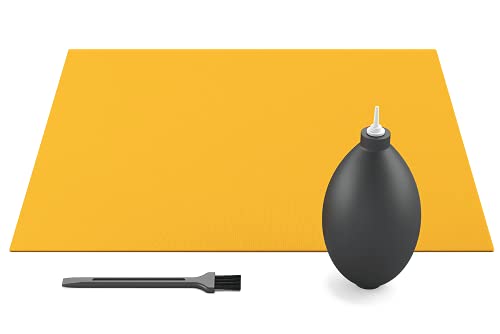
- Razer mouse pad cleaning kit microfiber cloth
- gaming mouse pad cleaner spray
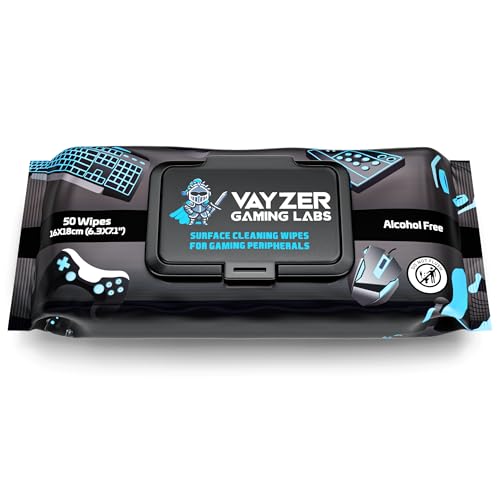
- isopropyl alcohol-free wipes for keyboard and mouse pad
- mild dish soap (optional)
- clean bowl or sink
- soft-bristle brush or sponge
- dry towel or rack for air drying

Before You Start
Assess the pad material and design, since some edges or stitched seams may need extra care. Clear the desk area to prevent items from getting wet or damaged. Fill a basin with lukewarm water and a few drops of mild soap if deeper cleaning is required. Plan for a drying period of 2–6 hours depending on humidity and pad thickness. Avoid soaking hard surface pads for too long as prolonged exposure can loosen adhesives or warps. Always allow the pad to dry completely before reconnecting your mouse to avoid sensor interference.
Step-By-Step: How To Clean A Razer Mouse Pad
- Remove the pad from the desk and shake off loose dust and skin cells to reduce surface grime before washing.
- For light cleaning, wipe the surface with a microfiber cloth dampened with water to lift oils without saturating the material.
- Apply a light mist of gaming mouse pad cleaner spray or a mild soap solution to the cloth, then gently scrub in circular motions across the pad.
- Focus on stained areas by applying a bit more cleaner and using a soft-bristle brush to lift embedded grime from the fibers.
- If using wipes, choose isopropyl alcohol-free wipes for keyboard and mouse pad and wipe the surface in straight strokes; avoid excessive rubbing that could fray the material.
- Rinse the cloth with clean water and wipe the pad again to remove any soap or cleaner residue lingering on the surface.
- Rinse the pad carefully under a gentle stream of lukewarm water if your pad has a risk of soap residue; for fabric pads, a light rinse is usually sufficient.
- Gently squeeze out excess water (do not wring) and pat dry with a clean towel to remove surface moisture.
- Lay the pad flat on a clean towel in a well-ventilated area and allow it to air dry completely, turning occasionally to ensure even drying.
- Once fully dry, reassemble your desk setup and test the glide with your mouse to confirm the surface feels clean and smooth.
- If odors persist after drying, repeat the cleaning cycle or consider a deeper clean using the basin method described in the “Before You Start” section.
Troubleshooting
| Symptom | Likely Cause | Fix | Prevention |
|---|---|---|---|
| Pad feels sticky after cleaning | Soap residue not fully rinsed | Rinse surfaces again and wipe dry with a towel | Use minimal soap and thorough final rinse |
| Color fading or fibers fraying | Overly aggressive scrubbing | Switch to gentle circular motions and softer brush | Avoid harsh brushes and hot water |
| Drying takes too long | Thick padding or high humidity | Increase airflow, place near a fan; remove excess moisture | Clean on a dry day or use a quick fan-assisted setup |
| Pad warps after washing | Excessive water exposure | Dry flat and evenly; avoid bending while wet | Use minimal water and air-dry completely |
Common Mistakes
- Using hot water, which can warp fabrics and degrade adhesives
- Submerging the pad for fabric designs with glued edges
- Prolonged rubbing in one spot, which can wear the texture
- Skipping thorough drying, leading to mildew or odors
Sticking to gentle cleaning with proper drying times keeps the pad’s texture and glide consistent over many sessions.
Tips For Best Results
- Clean on a regular basis to prevent buildup that can impact glide and sensor tracking
- Test any cleaner on a small, inconspicuous area first to avoid discoloration
- Use a dedicated microfiber cloth to avoid lint transfer from other fabrics
- Store pads flat and away from direct sunlight to preserve color and material integrity
- Label a routine, e.g., monthly quick wipe plus quarterly deep clean, to simplify maintenance
Call A Professional
If the pad shows persistent discoloration, warping, or significant delamination, or if it is a premium hard-surface pad with specialized coatings, consider consulting the manufacturer’s care guide or a professional electronics cleaning service. Stop cleaning and seek help if cleaning products cause discoloration, a strong odor, or surface degradation.
FAQ
Can I use household cleaners on a Razer mouse pad?
Stick to mild, gentle cleaners or the dedicated gaming pad spray. Avoid harsh chemicals that can degrade fabrics or coatings.
How long should a cleaned mouse pad dry?
Allow 2–6 hours of air drying depending on thickness and air flow; ensure the pad is fully dry before use.
Is it safe to wash a fabric mouse pad in a washing machine?
Most fabric pads should not be machine washed; hand cleaning is safer to prevent edge fraying or edge detachment.
How often should I clean my mouse pad?
For heavy use, a light wipe weekly and a deeper clean every 1–3 months helps maintain performance.
What about hard surface mouse pads?
Hard pads can be wiped with damp cloth or a gentle spray; avoid soaking and let them dry completely before use.
Buying Guide
When choosing a cleaning routine and products for a Razer mouse pad, consider size, pad material, and the type of cleaning products that best fit your setup. Key factors include:
- <bPad size and material: Fabric pads may require more gentle cleaning, while hard pads tolerate stronger sprays but still need drying time.
- <bNoise and energy considerations: Cleaning products are generally low-noise; maintain energy by using minimal water and air drying to speed up readiness.
- <bControls and compatibility: Ensure cleaners do not leave residues that affect sensor tracking or glide consistency.
- <bPlacement and drying: Work in a well-ventilated space; lay pads flat to dry to maintain shape and surface integrity.
- <bComparison perspectives: Weigh cleaner spray versus wipe sets, and assess whether a dedicated cleaning kit offers time-saving steps for your setup.
Ready to refresh your battlestation? With thoughtful cleaning steps and the right products, your Razer mouse pad can feel like new, preserving precision and comfort for countless gaming hours.
Leave a Reply