How to Clean Up Storage on Your PC
Cleaning up storage on a PC helps improve performance, reduce startup times, and create a more organized workspace. This guide walks through practical steps to reclaim space, manage clutter, and keep your system running smoothly without specialized hardware.
By following the steps below, users can safely remove unnecessary files, optimize storage, and implement ongoing maintenance routines that prevent buildup over time.
Quick Answer
Start with a quick scan of large files and unused programs, then purge temporary files and duplicates. Use a dedicated cleaning kit for hardware dust if needed, and finish with organized cable management to prevent future clutter.
A Quick Start: What You’ll Need
- Compressed air duster for electronics PC cleaning 12 oz with straw
- Keyboard and computer cleaning kit microfiber cloth brush electronics
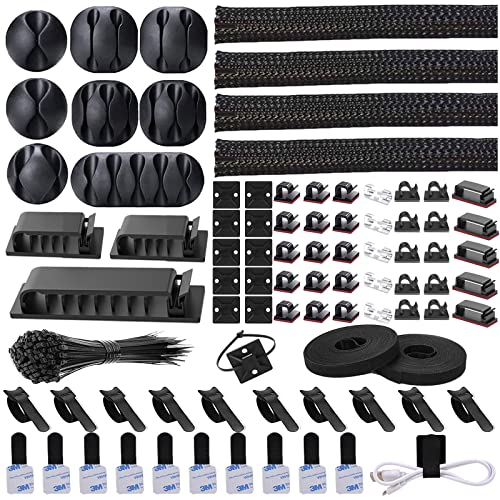
- Cable management kit with zip ties Velcro straps for PC desk


Before You Start
Before beginning, back up important data to an external drive or cloud storage. Ensure the PC is powered off and unplugged when handling internal components. Create a restore point if your operating system supports it. Wear protective gear if necessary and work in a clean, static-free area.
Estimated time for a typical cleanup session ranges from 45 minutes to a few hours depending on data volume and hardware access. Plan to allocate time for both software cleanup and any optional hardware steps.
Step-By-Step: How To Clean Up Storage On Your PC
- Open Settings and go to Storage to identify what’s consuming space, focusing on apps and temporary files.
- Use Disk Cleanup or a trusted cleanup tool to remove system files, temp files, and cache data.
- Review large files with File Explorer by sorting by size and deleting or archiving items you no longer need.
- Uninstall unused programs via the Apps & Features list, paying attention to space-heavy software you rarely use.
- Identify duplicates using a dedicated duplicate finder and remove redundant copies to reclaim space.
- Move personal data such as photos, videos, and documents to an external drive or cloud storage if feasible.
- Consider enabling Storage Sense (Windows) or equivalent automatic cleanup features to maintain free space over time.
- Run a malware scan to ensure that unwanted software isn’t consuming storage or affecting performance.
- Organize remaining files into clearly labeled folders and consider a simple backup plan for critical data.
- Restore system performance by updating software and drivers after freeing up space.
- For hardware care, use the compressed air duster for electronics PC cleaning 12 oz with straw to remove dust from vents and fans.
- Finish with cable management: align cables, use Velcro straps, and secure power and data lines to reduce clutter inside the workspace.
Troubleshooting
| Symptom | Likely Cause | Fix | Prevention |
|---|---|---|---|
| PC slows after cleanup | Insufficient disk space or background updates | Recheck storage, pause updates, or move files to external storage | Regularly monitor space and automate cleanup |
| Programs won’t uninstall | Stubborn registry entries or system protections | Use built-in uninstallers or safe mode, then rerun cleanup | Uninstall rarely-used apps in one pass |
| Dust at fans or vents | Accumulated dust over time | Use compressed air duster for electronics PC cleaning 12 oz with straw | Schedule routine dusting every few months |
| Cables look tangled after cleanup | Poor cable management | Reorganize with cable sleeves or Velcro straps | Plan a dedicated cable routing layout |
Common Mistakes
- Deleting critical system files or leaving temporary files that are needed by apps
- Blindly removing files without checking size or usage
- Ignoring backups before large deletions
- Over-tightening cable ties, which can damage wires
- Rushing through steps; skipping a reset or scan can leave hidden cache
Tips For Best Results
- Schedule periodic cleanup sessions—monthly or quarterly—to prevent buildup.
- Use cloud storage or external drives for infrequently accessed media and documents.
- Combine software cleanup with hardware care to extend overall PC lifespan.
- Label folders clearly and maintain a simple folder structure for easy retrieval.
- Keep a small, organized toolkit and cleaning kit handy for both software and hardware tasks.
Call A Professional
Stop and seek professional help if you encounter hardware failures during cleanup, cannot access system files, or if the PC emits unusual noises or heats excessively. Seek expert assistance for data recovery if needed, and consult a technician for persistent boot or performance issues that software adjustments cannot resolve.
FAQ
How often should I clean up PC storage?
As a general rule, perform a cleanup every 1–3 months, adjusting the frequency based on usage and file accumulation.
Is it safe to delete temporary files?
Yes, temporary files are usually safe to delete, but ensure you aren’t removing necessary cache for active apps.
Can I use a cleaning kit for the inside of my PC?
Yes, a keyboard and computer cleaning kit can help keep external surfaces clean; for internal components, use compressed air with caution.
What if I run out of disk space after cleanup?
Move large media to an external drive or cloud storage, and consider upgrading the storage capacity if needed.
Should I use cloud storage for backups?
Cloud storage is a convenient option for backups, but maintain an additional local backup as a safety net.
How do I keep cables organized long-term?
Use a cable management kit with zip ties and Velcro straps to secure cables behind the desk and within the PC enclosure.
Buying Guide
When choosing storage cleaning and organization tools, consider the following factors to match your setup and workflow.
- <bSize and capacity: Ensure external drives or cloud plans offer enough space for your data without overprovisioning.
- <bNoise level and ease of use: If using a fans or compact devices, look for quiet and simple operation options.
- <bEnergy efficiency: Choose energy-conscious devices for long-term use, especially in home offices.
- <bControls: Look for intuitive software features for cleanup automation and scheduling.
- <bPlacement: Plan where to place external drives and how to route cables for a tidy workspace.
This guide aims to help users approach PC storage cleanup with practical steps and a clear workflow. If you need tailored advice based on your operating system or hardware, feel free to ask for specifics.
Leave a Reply