How to Deep Clean Your PC
Keeping a desktop or laptop in top condition requires regular maintenance beyond quick dusting. A thorough PC deep clean helps improve cooling, prolong component life, and maintain peak performance. This guide provides a practical, step-by-step approach using common tools to safely remove dust, debris, and grime from your computer and peripherals.
Quick Answer
Power down your PC and unplug it. Use compressed air to dislodge dust from vents and heatsinks, a USB powered mini vacuum for targeted debris, and a microfiber brush kit for gentle surface cleaning. Work in a well-ventilated area, keep components grounded, and avoid moisture near electronics. Reassemble, reconnect, and test performance after cleaning.
What You’ll Need
- Compressed air duster for electronics PC cleaning
- Anti-static keyboard cleaning brush microfiber kit
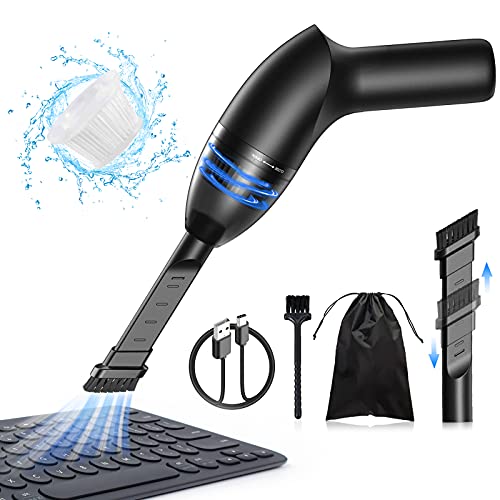
- USB powered mini vacuum for electronics computer


Before You Start
Prepare the workspace on a clean, flat surface with good lighting. Ground yourself to prevent static discharge; touch a metal object or wear an anti-static wrist strap. Open the PC case only if you are comfortable and know how to safely reseat components. Disconnect all power sources and peripherals. Time estimate: 30–90 minutes depending on system complexity. Warning: Do not use a vacuum on exposed fan blades or power supply unless you know it’s designed for such use; avoid rotating dust into other areas. Never spray liquids directly onto components.
Step-By-Step: How To Deep Clean Your PC
- Power down and unplug and remove any detachable peripherals. If you are inside a laptop, follow the manufacturer’s service guide.
- Open the case carefully using the appropriate screwdriver. Note cable routing to avoid pinching when closing the panel.
- Inspect visually for obvious dust buildup around fans, vents, RAM slots, and the motherboard.
- Use compressed air to blow dust from fans, heatsinks, and filter areas. Keep the can upright and use short bursts to prevent moisture.
- Clear hard-to-reach dust with the antistatic keyboard cleaning brush microfiber kit to sweep away debris from PCIe slots, fan blades, and case corners.
- Vacuum carefully with the USB powered mini vacuum for electronics computer around non-sensitive surfaces to collect loosened particles. Do not touch components with the vacuum nozzle.
- Wipe surfaces gently with a microfiber cloth to remove any residual grime from exterior panels and the case interior where safe to do so.
- Re-seat components if you removed any, ensuring firm connections and proper alignment. Reconnect all cables, paying attention to airflow orientation.
- Close the case and power up after a quick check of all connections. Monitor temperatures to confirm cooling improvements are realized.
- Document any issues such as unusual fan noises or overheating, which may indicate deeper maintenance needs or component wear.
- Establish a routine for regular cleaning every 3–6 months, depending on dust exposure and environment.
Troubleshooting
| Symptom | Likely Cause | Fix | Prevention |
|---|---|---|---|
| PC powers on but fans spin oddly | Dust on fan blades or heatsink | Carefully rinse with compressed air and brush | Keep fans covered during cleaning; perform routine dust checks |
| Overheating after cleaning | Removed thermal paste or reseat incorrectly | Reapply thermal paste and reseat CPU cooler as needed | Follow manufacturer guidance; avoid over-tightening |
| Noisy operation | Debris trapped in fans | Clear with compressed air and brush | Regular light cleaning to prevent buildup |
| Peripheral intermittence | Loose cables or connectors | Check and reseat all connections | Label cables for easy reassembly |
Common Mistakes
- Using a vacuum directly on sensitive components or power supply.
- Spraying liquids or solvents inside the case.
- Rushing the process; overheating may occur if airflow is blocked after cleaning.
- Removing thermal paste without proper procedure on CPUs or GPUs.
Tips For Best Results
- Clean in a well-ventilated area to avoid inhaling dust and to prevent particle re-settling.
- Work slowly and methodically to avoid dislodging cables or connectors.
- Keep dust filters clean and replace them as needed to maintain airflow.
- Schedule quarterly checks for desktops and semi-annual for laptops, depending on use and environment.
Call A Professional
Consider professional service if you notice persistent overheating after cleaning, liquid exposure, or if you are uncomfortable disassembling a laptop or all-in-one PC. Seek expert help for BIOS or firmware updates, complex motherboard work, or warranty-covered maintenance.
FAQ
Is it safe to deep clean a PC while it is turned off?
Yes. Always power down, unplug, and discharge static before handling internal components.
What tools are essential for a deep clean?
A combination of compressed air, an antistatic microfiber brush kit, and a USB powered mini vacuum suits most tasks.
How often should I deep clean my PC?
Generally every 3–6 months for desktops in dusty environments; laptops may require more frequent checks.
Can I use water to clean the keyboard or case?
Avoid liquids directly on electronics. Use a damp microfiber cloth only on non-electronic surfaces and ensure everything is completely dry before powering on.
Buying Guide
When choosing cleaning tools for your PC, consider size, effectiveness, and safety. The most important factors include how well tools reach tight spaces, how static-safe they are, and how they handle different surfaces inside the case. For many users, a compact set combining a compressed air duster, an anti-static brush kit, and a USB-powered vacuum provides a complete solution. Pay attention to compatibility with electronics and avoid tools that could generate static discharge or moisture near circuitry.
Additional Buying Factors to Consider
Size and form factor: Ensure the vacuum and brushes reach cramped areas such as beneath GPUs and around power supplies. Noise level: Some devices can be surprisingly loud; look for lower decibel options if you work in a shared space. Energy efficiency: USB-powered devices are efficient and simple to power from a laptop or desktop. Controls: Simple, reliable operation is ideal for quick maintenance sessions. Placement: Store cleaning tools in an accessible area near your workstation to encourage regular cleaning.
Leave a Reply