How to Remove Write Protection From an SD Card
Write protection on an SD card can prevent saving files, taking photos, or updating data. This guide outlines practical, user-friendly steps to disable write protection on standard SD cards, microSD adapters, and common readers. By following the steps, most users can regain full writing capability without specialized tools.
Whether you’re dealing with a stubborn card in a camera, a computer, or a card reader, the following procedures cover hardware switches, software settings, and formatting considerations. Always back up important data when possible before attempting fixes that could affect stored information.
Quick Answer
Try the hardware switch first. If your SD card or adapter has a physical write-protect switch, slide it to the unlocked position. If the issue persists, check device settings, try a different reader, and consider formatting as a last resort after backups.
What You’ll Need
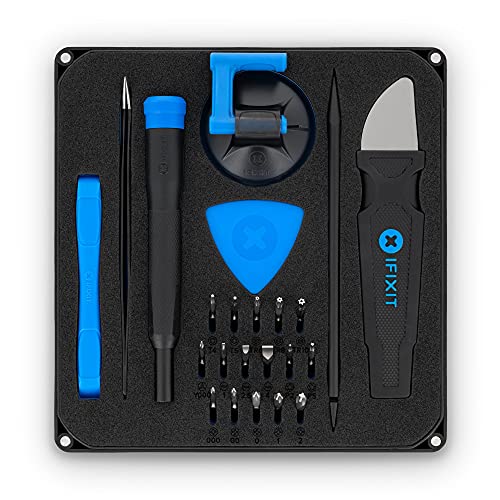
- SD card repair toolkit
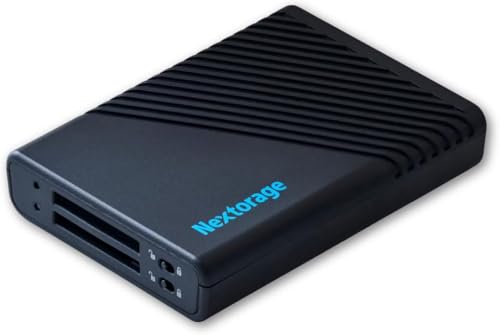
- SD card reader with write protection switch
- microSD adapter with write protection lock
- Computer or camera with USB or card slot access
- Backup storage (optional but recommended)
- Optional: data recovery software (if data loss occurs)

Before You Start
Before attempting fixes, confirm the card is properly seated in the reader and the device recognizes the card. Back up data if possible to prevent loss. Ensure you are using a compatible file system; some devices expect FAT32 or exFAT depending on card size. Time to complete varies by method, typically 10–30 minutes.
Step-By-Step: How To Remove Write Protection From An SD Card
- Check the physical switches. Locate any write-protect slider on the SD card adapter or reader. Move the switch to the unlock position. Some microSD adapters omit a switch, in which case proceed to software checks.
- Try a different reader or port. Some readers have faulty switches or circuitry. Attempt to access the card through another USB port or card reader to rule out a faulty device.
- Reinsert and reselect the card. Safely eject, reinsert the card, and verify it is identified by the operating system. On Windows, check Disk Management; on macOS, use Disk Utility to view the card status.
- Disable read-only attributes in software. In Windows, right-click the drive in File Explorer → Properties → uncheck Read-only if available. In macOS, use Get Info to ensure Locked is not selected. If the option is grayed out, proceed to advanced steps or formatting after backup.
- Use disk management tools. On Windows, open Diskpart and run commands to clear the read-only attribute:
- diskpart
- list disk
- select disk X (where X is the SD card)
- attributes disk clear readonly
- exit
For macOS, use Disk Utility to erase or partition the card if necessary, choosing a compatible format and scheme.
- Check for hidden or system-protected files. Some devices set a hidden lock on the card’s write functions. Access advanced options to ensure the root filesystem is not flagged as read-only.
- Update or reinstall drivers. If using a PC, ensure the card reader drivers are up-to-date. Reinstalling drivers can reset access permissions that cause write protection.
- Attempt a clean format (last resort). If backups exist and the card remains write-protected, formatting the card to FAT32 or exFAT (depending on size) may be necessary. Note: Formatting erases all data.
- Test after each step. Eject and reinsert the card after each adjustment to confirm whether write access is restored.
- Use recovery or repair tools as needed. If data is inaccessible, a dedicated SD card repair toolkit or recovery software can help salvage files before formatting.
Troubleshooting
| Symptom | Likely Cause | Fix | Prevention |
|---|---|---|---|
| Card shows as Read-only | Hardware switch engaged or filesystem flag | Toggle hardware switch; use disk management to clear read-only attributes | Always eject safely; avoid abrupt removal |
| Device not recognizing card | Reader or port issue | Try another reader/port; update drivers | Use high-quality readers with reliable switches |
| Formatting fails | Corrupted filesystem | Backup data, format with a compatible filesystem | Regularly back up to prevent data loss |
| Write operations fail intermittently | Partial damage or bad blocks | Run a surface scan and repair if supported | Avoid using failing cards for critical data |
Common Mistakes
- Attempting to format a card without backing up important files
- Ignoring a faulty reader that hides the true problem
- Overlooking small physical damage on the card or adapter
- Relying on a single method without testing multiple readers
Tips For Best Results
Use a reliable SD card repair toolkit for deeper diagnostics and data recovery if needed. Keep multiple readers on hand to test compatibility. When possible, format to a standard that matches your devices’ requirements, especially for cameras and mobile devices. Document any changes you make so you can revert if a problem recurs.
Call A Professional
Seek professional help if:
- The card contains irreplaceable data you cannot back up.
- The card remains write-protected after all standard fixes.
- There are signs of physical damage beyond a simple switch or firmware issue.
FAQ
Why is my SD card suddenly write-protected?
Common causes include a physical write-protect switch mispositioned, filesystem flags, or a faulty card reader. Software restrictions may also apply on some devices.
Can I recover data from a write-protected SD card?
Yes, data recovery tools and services can often retrieve files if the card is accessible or salvageable. Always back up first when possible.
Is formatting always the solution?
Formatting resolves write-protection in many cases but erases all data. Use it as a last resort after backing up.
Will a different adapter help?
Yes. Sometimes the write-protect mechanism on a faulty adapter or reader prevents access. Swap adapters or readers to diagnose.
What file systems are best for SD cards?
Common options are FAT32 for cards up to 32 GB and exFAT for larger capacities, depending on device compatibility.
Buying Guide
When choosing SD cards and related gear to prevent write-protection issues, consider size, speed, and durability alongside accessories. The right toolkit and reader can streamline fixes and maintenance.
Size And Load
For cameras and drones, larger capacity cards with robust write speeds reduce buffering. For frequent on-the-go backups, consider mid-range cards with reliable wear leveling and error correction.
Noise Level And Reliability
Readers are typically silent, but some budget models emit subtle hums during operation. Prioritize readers with solid construction and consistent performance to minimize data errors.
Energy Efficiency
Power usage is usually not a major concern for SD cards, but some USB readers draw power from the host device. USB-powered hubs with stable power can improve reliability in laptops and tablets.
Controls And Features
Look for physical write-protect switches on adapters and readers, as they provide quick, manual control. A good microSD adapter with a lock helps prevent accidental writes when transferring files.
Placement And Usage
Keep cards away from extreme temperatures, moisture, and direct sunlight. Store them in protective cases and label them to reduce mix-ups during travel or fieldwork.
Leave a Reply