How to Clean Your Samsung Phone Safely and Effectively
Samsung phones use delicate screens and precision ports that benefit from careful cleaning. This guide provides a practical, step-by-step approach to keep a Samsung Galaxy device looking and functioning like new, using common tools and specifically chosen accessories.
Quick Answer
Gently wipe the screen with a microfiber cloth, use a dampened cloth for stubborn smudges, avoid excess liquid, and finish with dry wipes. For crevices, employ a soft cleaning brush and dedicated screen wipes to protect coatings and ports.
What You’ll Need
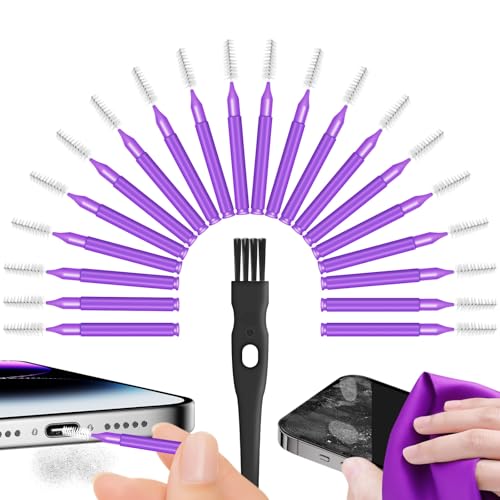
- Samsung Galaxy smartphone screen cleaning kit microfiber cloth
- USB-C port cleaning brush for smartphones
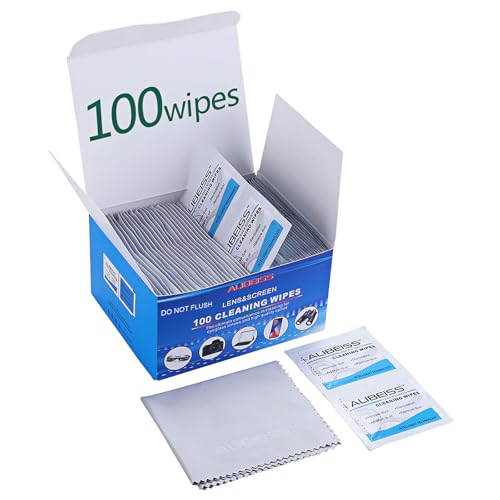
- screen cleaning wipes for smartphones Samsung Galaxy

Before You Start
Turn off the device and unplug any accessories. Remove the case if possible to access all surfaces. Work in a clean, lint-free area to minimize debris transfer. Time estimate: 5–10 minutes for a quick clean; 15–20 minutes for a deeper wipe-down. Avoid using household cleaners, ammonia-based products, or excessive liquids, which can damage screen coatings or seep into ports.
Step-By-Step: How To Clean Your Samsung Phone
- Power off the phone and disconnect charging cables.
- Wipe the screen surface with a dry microfiber cloth to remove loose dust.
- Lightly dampen a corner of the microfiber cloth with water or a dedicated screen cleaning wipe, then wipe the screen in gentle circular motions.
- For stubborn smudges near the edges, use a Samsung Galaxy smartphone screen cleaning kit microfiber cloth to lift residue without rubbing hard.
- Inspect the USB-C port area; if dust or lint is visible, use the USB-C port cleaning brush for smartphones to remove debris carefully. Do not insert sharp objects.
- Wipe the entire device once more with a dry portion of the microfiber cloth to remove any moisture.
- Clean the camera lenses and fingerprint sensor area with a dedicated screen wipe or gentle microfiber touch; avoid pressing hard.
- Reattach any case and power on the device to ensure everything works smoothly after cleaning.
- Store the kit in a safe location for future touch-ups and repeat cleaning as needed.
- Keep wipes sealed after use to prevent evaporation; replace cloths when they show wear.
- For routine maintenance, consider a light wipe weekly and a deeper wipe monthly depending on usage.
Troubleshooting
| Symptom | Likely Cause | Fix | Prevention |
|---|---|---|---|
| Screen shows streaks after cleaning | Residue from cleaning wipe | Wipe with a fresh dry microfiber cloth | Use minimal solution and a lint-free cloth |
| Water spots around ports | Excess moisture | Dry thoroughly with the cloth; avoid over-wetting | Only lightly dampen cloth, never soak |
| Scratches on screen after cleaning | Rough cloth or abrasive material | Switch to a clean microfiber cloth and soft motion | Never use paper towels or metal tools |
| Dust returns after cleaning | Open case or vent areas | Reassemble case and wipe again with dry cloth | Keep device covered when not in use |
Common Mistakes To Avoid
- Using household cleaners with chemicals that can strip coatings
- Spraying liquids directly onto the screen or ports
- Using rough cloths or paper products that scratch surfaces
- Rubbing aggressively around the USB-C port or speakers
Tips For Best Results
- Always power off before cleaning to prevent accidental inputs
- Prefer a screen cleaning wipe for smartphones Samsung Galaxy for quick touch-ups on the go
- Use a dedicated microfibre cloth to maintain screen clarity and fingerprint resistance
- Schedule routine cleanings to prevent build-up of oils and dust
Call A Professional
Seek professional help if the device has liquid exposure, visible internal moisture, cracks, or if cleaning is required inside ports or speakers. Do not attempt to disassemble the phone yourself, as this can void warranties and cause further damage.
FAQ
Can I use water to clean my Samsung phone?
Yes, but use a very small amount on a microfiber cloth and avoid soaking the device. Dry promptly after cleaning.
Is it safe to use USB-C port cleaning brushes on all Samsung models?
Generally safe for exterior port cleanings; avoid aggressive pressure or insertion into internal components.
How often should I clean my Samsung phone?
Light cleaning weekly and a deeper clean monthly helps maintain screen clarity and port integrity.
What should I do if moisture is visible inside the device after cleaning?
Power off immediately and seek professional service to assess potential water damage.
Buying Guide
When selecting cleaning supplies for a Samsung phone, consider size and compatibility with screens and ports, noise levels if using brushes, energy efficiency of any powered tools, and how controls feel during use. Look for sets that include a microfiber cloth, screen wipes, and a soft cleaning brush designed for electronics. Compare materials that are non-abrasive and lint-free, and verify that wipes are alcohol-free or safe for coatings. Think about placement: a compact kit fits in a desk drawer or travel bag, while a larger set may serve multiple devices. If you value quick maintenance, a dedicated smartphone screen cleaning kit offers convenience and reliable results.
Leave a Reply