How to Clean Up Space on iPhone
Running low on storage can slow down an iPhone and limit its usefulness. This guide provides practical steps to reclaim space, including how to offload large files to external drives that are Lightning compatible. The aim is to help users identify what’s consuming storage and implement safe, repeatable strategies.
Quick Answer
Begin by reviewing storage usage in Settings, then offload photos, videos, and apps you rarely use. Consider transferring files to an external storage drive designed for iPhone to keep your device lean. Regularly back up important media to a trusted drive and delete duplicates to free space efficiently.
What You’ll Need
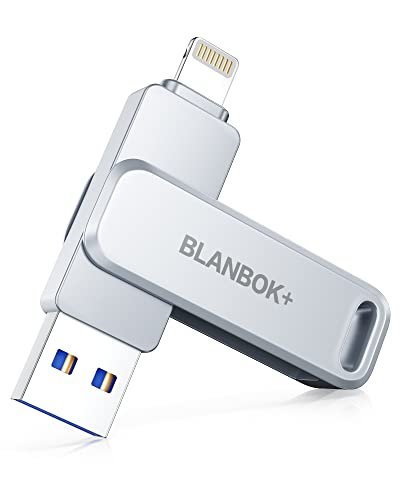
- Lightning external storage drive for iPhone 128GB
- Lightning flash drive for iPhone photo backup 64GB
- iPhone external storage USB drive Lightning compatible 256GB


Before You Start
Plan a short maintenance window when you won’t need the phone for a couple of hours. Ensure your iPhone is charged or connected to a power source during large transfers. Back up first to avoid accidental data loss. For sensitive media, consider encrypting backups if the drive supports it.
Time estimate: 30–90 minutes depending on library size. If you store many high-resolution videos, allocate more time. Keep a backup routine to prevent future clutter and preserve important memories.
Step-By-Step: How To Clean Up Space On iPhone
- Open the Settings app and tap General, then iPhone Storage to see a breakdown of used space by app and data type.
- Review Recommendations at the top of the screen, such as Offload Unused Apps and Review Large Attachments, and enable them as appropriate.
- Go through Apps list and tap any app with significant storage usage. If you don’t need it, choose Offload App or Delete App, then revisit if you want to keep its data.
- Inspect Photos and Videos in the Photos app. Enable Optimize iPhone Storage to keep smaller thumbnails locally and store full-resolution copies in iCloud, if available.
- Transfer or back up media to an external drive. Connect a Lightning external storage drive for iPhone 128GB or the Lightning flash drive for iPhone photo backup 64GB, or use the USB option 256GB to move files off-device.
- Use the Files app to locate large files stored in On My iPhone or in iCloud Drive, then move or delete as needed. For backups, copy important files to the external drive before removing from the device.
- Manage Messages and its attachments. Delete old conversations, or set Keep Messages to 30 days or 1 year under Messages > Keep Messages.
- Check Mail and remove large attachments you no longer need, especially if you have multiple accounts with heavy sending history.
- Empty Recently Deleted albums in Photos and in other apps where data sits temporarily after deletion.
- Restart the iPhone to ensure system caches and metadata settle after bulk deletes and transfers.
- Run another storage check to confirm the freed space, and organize a regular cleanup schedule to prevent buildup.
Troubleshooting
| Symptom | Likely Cause | Fix | Prevention |
|---|---|---|---|
| Phone still reports full storage after cleanup | Cached data or hidden backups | Restart device; clear Safari cache; review backup locations | Regularly audit storage and enable auto-offload features |
| Photos not appearing after transfer | Media not fully copied to external drive | Reconnect drive and re-run transfer; verify file integrity | Use a reliable drive and verify transfer status |
| External drive not recognized | Incompatible cable or power issue | Try a different cable or port; ensure drive has sufficient power | Check compatibility before purchase |
| iPhone slows during transfer | Background processes and large transfers | Pause other tasks; transfer in smaller batches | Schedule moves during low-usage times |
Common Mistakes
- Deleting apps or data without confirming backups first
- Assuming all photos are backed up automatically without enabling options
- Not testing external drives with the iPhone before large transfers
- Leaving duplicates and backups in the wrong location
- Forgetting to empty Recently Deleted folders after cleanups
Keeping a simple rule set helps: back up first, verify transfers, and maintain a recurring cleanup cadence.
Tips For Best Results
- Enable Optimize iPhone Storage if using iCloud Photos to minimize on-device files while preserving access.
- Use a high-quality Lightning external storage drive designed for iPhone to ensure reliable transfers and easy access.
- Schedule monthly cleanups and quarterly backups to a dedicated drive for ongoing space management.
- Organize files into clearly labeled folders on the external drive to simplify future retrievals.
- Consider archiving older media to a second external drive for long-term storage without cluttering the iPhone.
Call A Professional
Contact a professional if you encounter persistent storage issues that don’t respond to typical cleanup, such as a device slow-down beyond expected levels, corrupted backups, or frequent data loss during transfers. If the iPhone repeatedly fails to connect to external drives or shows unusual behavior after cleanup, seek expert help.
FAQ
What is the quickest way to free up space on iPhone?
Review storage in Settings, offload unused apps, delete large messages, and transfer photos/videos to an external drive.
Can I back up photos to a Lightning external storage drive?
Yes, many Lightning external storage drives are designed for photo backups and can be used with the Files app or a companion app.
Should I enable iCloud Photos when cleaning up storage?
Enabling iCloud Photos helps keep full-resolution copies in the cloud while retaining smaller previews on the device.
What if my external drive isn’t recognized by the iPhone?
Check cable compatibility, power supply, and whether the drive requires an app or formatting that the iPhone supports.
How often should I perform storage cleanups?
Consider a monthly routine, with a more thorough quarterly pass if you store many media files.
Is it safe to delete messages and attachments to free space?
Yes, but back up important conversations first if they contain critical information.
Buying Guide
When choosing external storage for an iPhone, consider size, compatibility, and transfer speed to match your usage. A good choice is a Lightning-compatible drive with sufficient capacity to cover your typical photo, video, and app data needs. Look for drives that offer fast transfer speeds and robust app support for easy management from the iPhone. Noise and heat are rarely concerns with portable drives, but ensure the device stays within reasonable temperature ranges during long transfers.
Key Buying Factors
- Size and capacity: Match to your typical library growth; common options include 64GB, 128GB, and 256GB.
- Noise level: Most portable drives operate quietly; choose a model with a compact, fanless design.
- Energy efficiency: Lightning-compatible drives draw power from the iPhone, so ensure the unit is rated for mobile use.
- Controls and app support: Some drives include companion apps for easy management and backup.
- Placement and portability: Compact, rugged designs with reinforced connectors help when traveling or moving between locations.
By pairing the right external storage with a regular cleanup routine, users can maintain ample free space on their iPhone while keeping important memories safely backed up.
Leave a Reply